

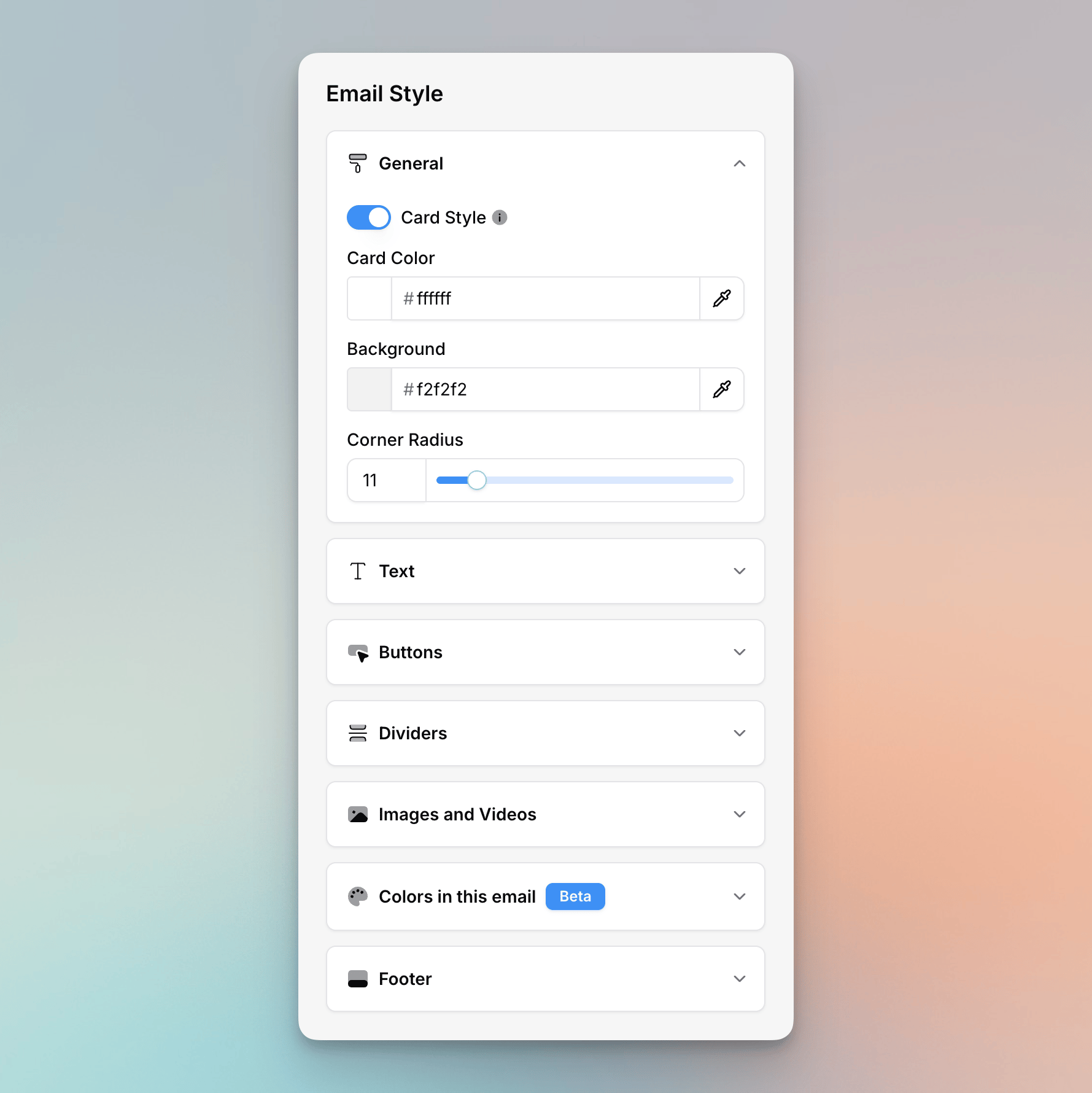
General Styles
Layout
Pick how your content sits on the page. Both layouts keep your blocks in the same centered column — the difference is whether a card sits behind them.- Seamless — Your content sits directly on one background color, with no card behind it. Set that color with Background.
- Card — Your content sits on a card, framed by a second background color. Set the card’s color with Card Color and the color around it with Background (visible on the sides and top/bottom).
Corners
Use the Corners slider to set the corner radius of the card (0–100px). This value is also used as the default corner radius for blocks that don’t have their own rounding setting, keeping your email visually consistent.Text Defaults
The Text section lets you set default styles for each text element type: Heading 1, Heading 2, Heading 3, and Paragraph. For each element, you can configure:- Font — Choose from supported font families
- Color — Set the default text color
- Font Size — Adjust the size (in pixels)
- Mobile Size — An optional font size used only on small screens in the sent email. Leave it empty to use the same size everywhere. This is the size your text shrinks (or grows) to on phones — and it’s what the editor’s Mobile preview shows.
- Bold / Italic / Underline — Toggle formatting
- Align — The default alignment for this style (left, center, right, or justify). It applies to new and existing text of this style, but any explicit alignment you set on a specific paragraph in the text block toolbar still wins.
- Accent Text Color — Used for accent-colored text in your email
- Link Color — The color applied to all links
Button Defaults
Set default styles for all button blocks in your email:- Color — The button background color (or border color for outline style)
- Text Color — The button label color
- Style — Choose between Filled or Outline
- Padding — Horizontal and vertical padding
- Font Size — The button text size
- Border Radius — Rounded corners on buttons
- Alignment — Left, center, or right
Apply to All Buttons
Click Apply to all buttons to reset every button in your email (including buttons inside columns and cards) to the current defaults. This overrides any per-button customizations.Set as Default (from a block)
You can also set defaults from an individual button block. Select a button, customize it how you’d like, then click Set as default. This will:- Save that button’s style as the new default
- Update all other buttons that were still using the previous defaults
- Leave any buttons you had manually customized differently untouched
Reset to Default
When editing an individual button that has been customized away from the defaults, click Reset to default to snap it back to the current default style.Divider Defaults
Control the default appearance of divider blocks:- Color — The divider line color
- Thickness — The line thickness in pixels (0-100). A thickness of 0 turns the divider into a spacer.
- Style — Choose between Solid, Dashed, or Dotted line styles
Images and Videos Defaults
Set default styles for image and video blocks:- Size — Image width as a percentage (0–100%)
- Alignment — Left, center, or right
- Border Radius — Rounded corners on images
- Border Color — Optional border color
- Border Width — Optional border thickness. Supports per-side widths (top, right, bottom, left).
Video blocks share the same default style settings as images. Changing image
defaults will also apply to new video blocks.
Cards Defaults
Set the default look of cards blocks so every card in your email starts from the same style:- Text Color — The color of a card’s title and description
- Label Color — The color of the small label above a card’s title
- Button Color — The card button’s background color (or border color for outline style)
- Button Text Color — The card button’s label color
- Button Style — Choose between Filled or Outline
- Button Size — Fit, Full, or Large
- Button Alignment — Left or centered
- Image Ratio — The aspect ratio of a card’s image: 16:9, 1:1, or Original
- Content Alignment — Align the card’s content Left or Center
This is different from the Card layout under General Styles,
which frames your whole email in a background color. Cards Defaults control the
individual cards blocks you add to your content.
Colors in this Email
The Colors in this Email section shows all colors currently used across your email. You can use it to swap one color for another across the entire email at once, which is useful when rebranding or adjusting your color palette. It scans all style properties — backgrounds, text colors, button colors, divider colors, image borders, link colors, accent colors, and footer link colors — and replaces every instance of the old color with the new one. To replace a color:- Open Colors in this Email in the Styles panel
- Click the color you want to replace
- Choose the new color
- Click Replace to apply the change everywhere
Footer
Control the colors used in your email footer:- Footer Background — The background color of the footer area (only available with the Seamless layout)
- Footer Title — The color of footer title text
- Footer Text — The color of secondary/body text in the footer
- Footer Links — The color of links in the footer
How Defaults Work
- Per-email: Style defaults are stored with each individual email. Changing defaults on one email does not affect other emails.
- New blocks inherit defaults: When you add a new block (button, divider, image, or text), it automatically uses the current defaults.
- Templates carry styles: When you save an email as a template, its style defaults are included. Applying a template’s style will bring over all of its defaults.