

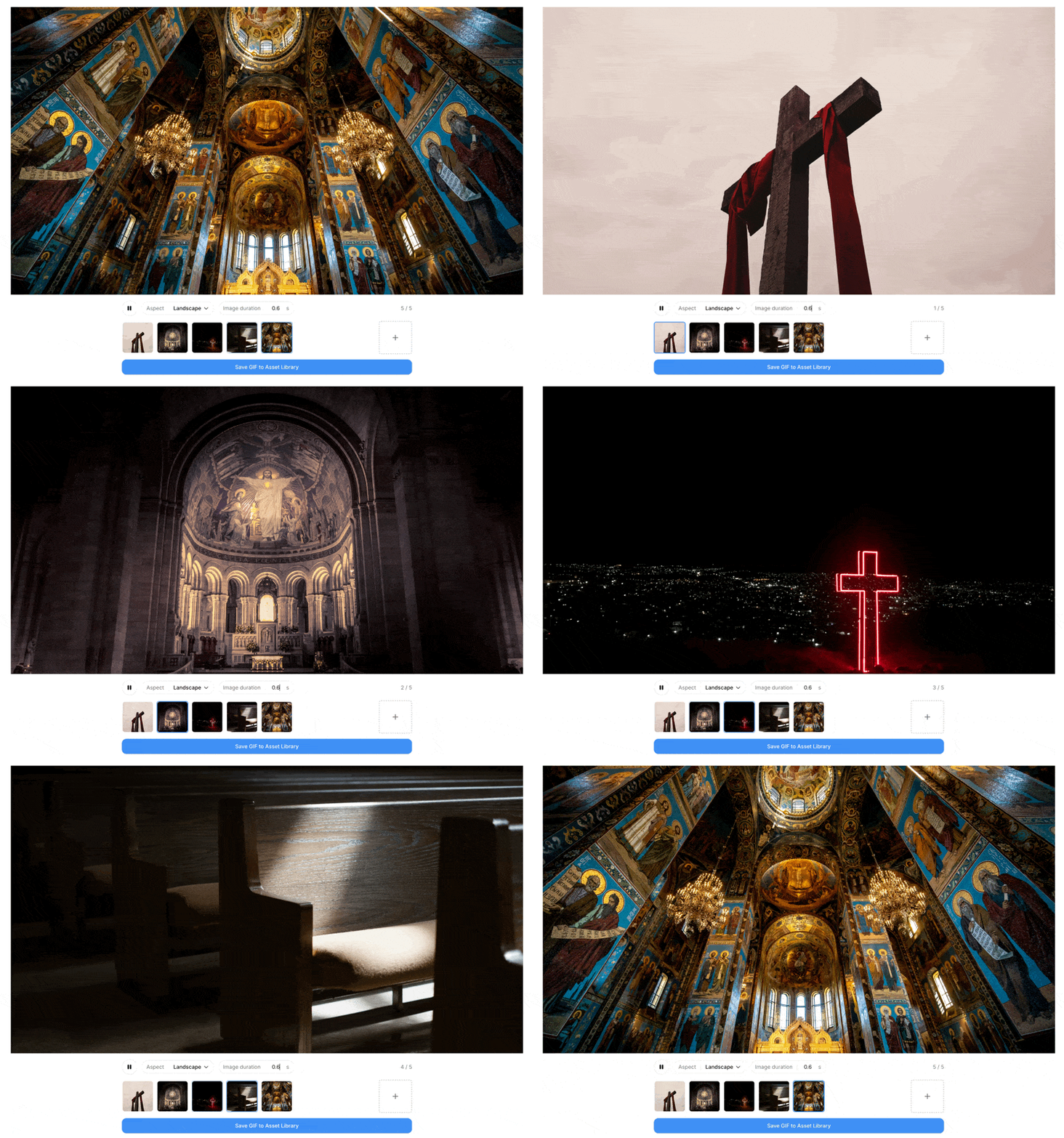
Adding Images
You can add images in two ways:- Click the Add Images button and select files from your device
- Drag and drop images directly into the generator
Adjusting Settings
Aspect Ratio
Use the Aspect dropdown to choose a preset dimension for your GIF:
If your uploaded images have unique dimensions, they will also appear as options. You can also select Custom to enter your own width and height (up to 4096 px).
Images are scaled to fill the chosen dimensions using a cover fit, with any remaining space filled in black.
Frame Duration
Set how long each frame is displayed using the Image duration control. You can type a value directly or drag the label up and down to adjust. Duration can be set between 0.2 and 1.2 seconds.Previewing
The canvas shows a live preview of how your GIF will look. Use the play/pause button to start or stop the animation. Clicking a thumbnail in the image strip jumps to that frame.Saving Your GIF
- Click Save GIF to Asset Library
- Enter a name for your GIF
- Click Save
A saved GIF must be under 10 MB. If yours comes out larger, trim the
number of frames or shorten the frame duration — large GIFs load slowly in
email, and a video block is often a better fit.
Need help? Contact support@flowforth.co.