

Recommended: Add People in Planning Center
The primary and recommended method for managing contacts is to add them directly in Planning Center.- Once added, people will be automatically synced to Flowforth.
- If you update an email address for a person in Planning Center, the change will be reflected in Flowforth automatically.
- This method ensures your people data stays accurate and consistent across tools.
Recommended: Using Custom Fields for Email Lists
We recommend setting up a custom checkboxes field in Planning Center to manage your email list subscriptions. Here’s how:1
Create a Custom Checkboxes Field
Go to Planning Center Customize and create a new Checkboxes field (e.g., “Newsletters”). Add an option for each email list you want to offer (e.g., “Church Updates”, “Kids Ministry”, “Student Ministry”).You can either create a new custom tab for this field or add it to an existing custom tab.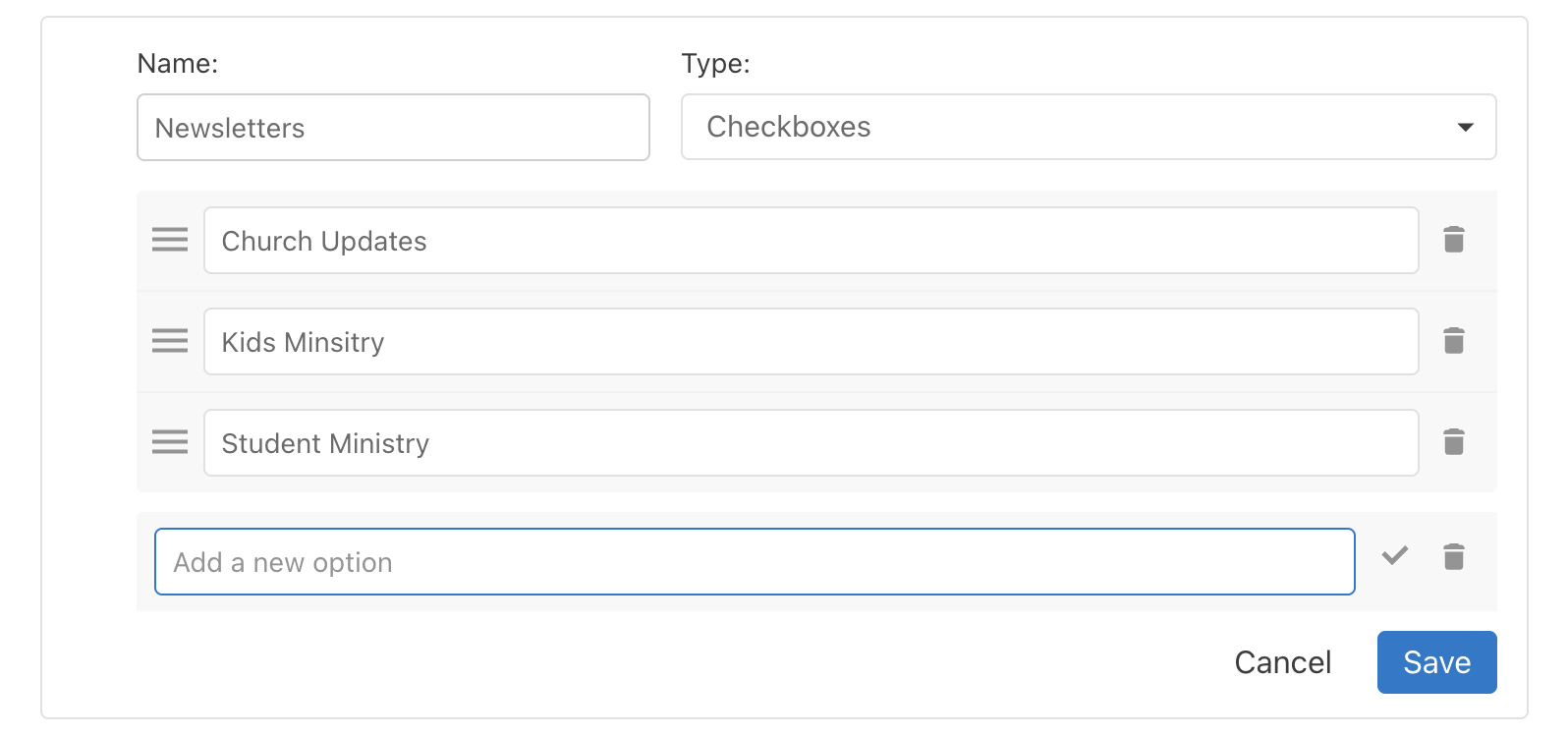
2
Add the Field to a Form
Create or edit a form at Planning Center Forms and add your custom checkboxes field. Share this form with your congregation so they can manage their own email preferences.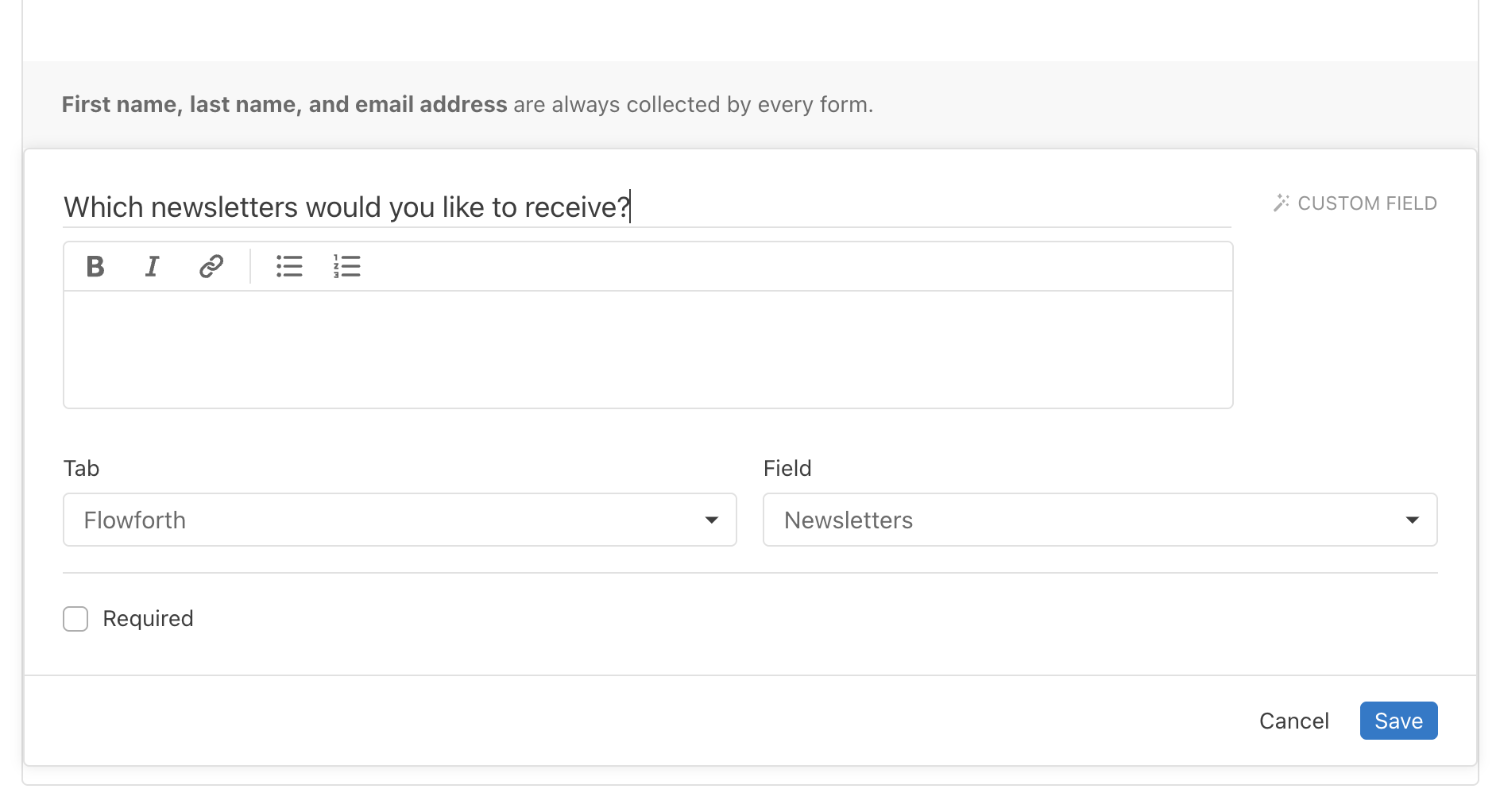
3
Create Lists Based on Custom Field Values
Go to Create a New List and set up a rule like:People → [Your Custom Tab] → [Your Checkboxes Field] → includes any → [Select the newsletter option]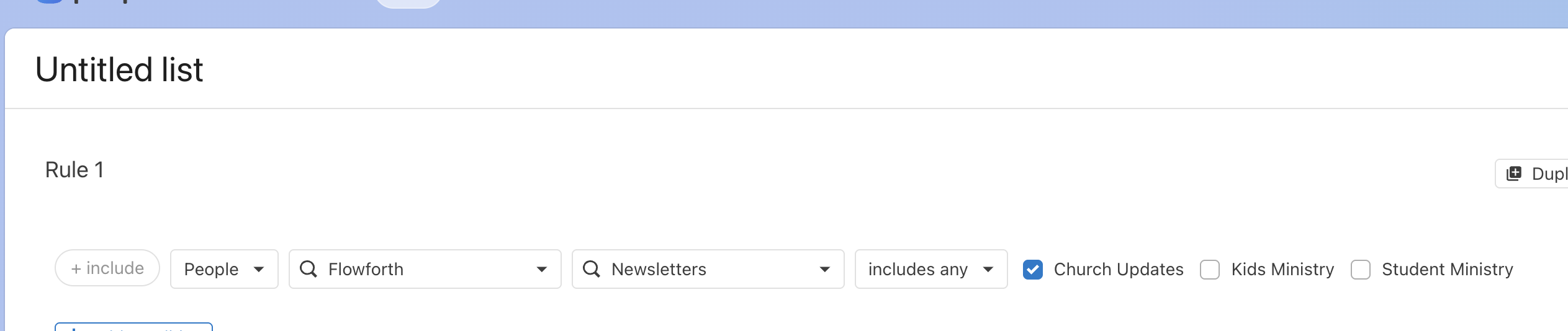
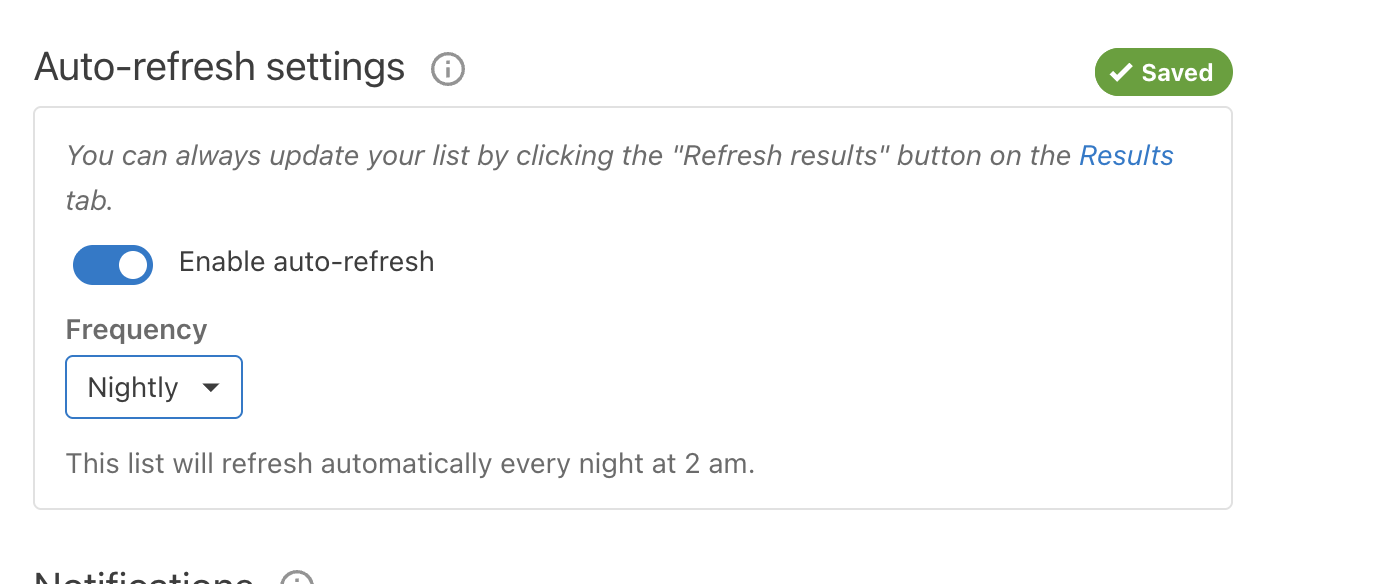
We do not sync email addresses that Planning Center has marked as blocked.
Let People Add Themselves with a Signup Form
You can also grow your list by letting people sign up directly. Choose a Planning Center form as your signup form and Flowforth gives you:- A hosted public signup page at
https://your-domain/subscribe. - Embeddable forms (full and simple) you can style and drop into your own website.
Importing People via CSV
If you’re switching from another email platform or need to upload people in bulk who are not in your PCO account, you can use a CSV import. Follow the instructions at:https://help.flowforth.co/people/importing-people This guide covers formatting your CSV, mapping fields, and uploading your contacts safely.
Only organization owners can import people.
For help with syncing or importing, contact support@flowforth.co.