

How to Create an Email
You can start a new email in two ways:- Go to Emails and click New Email
- Or click Create New in the sidebar and select Email
Choosing a Starting Point
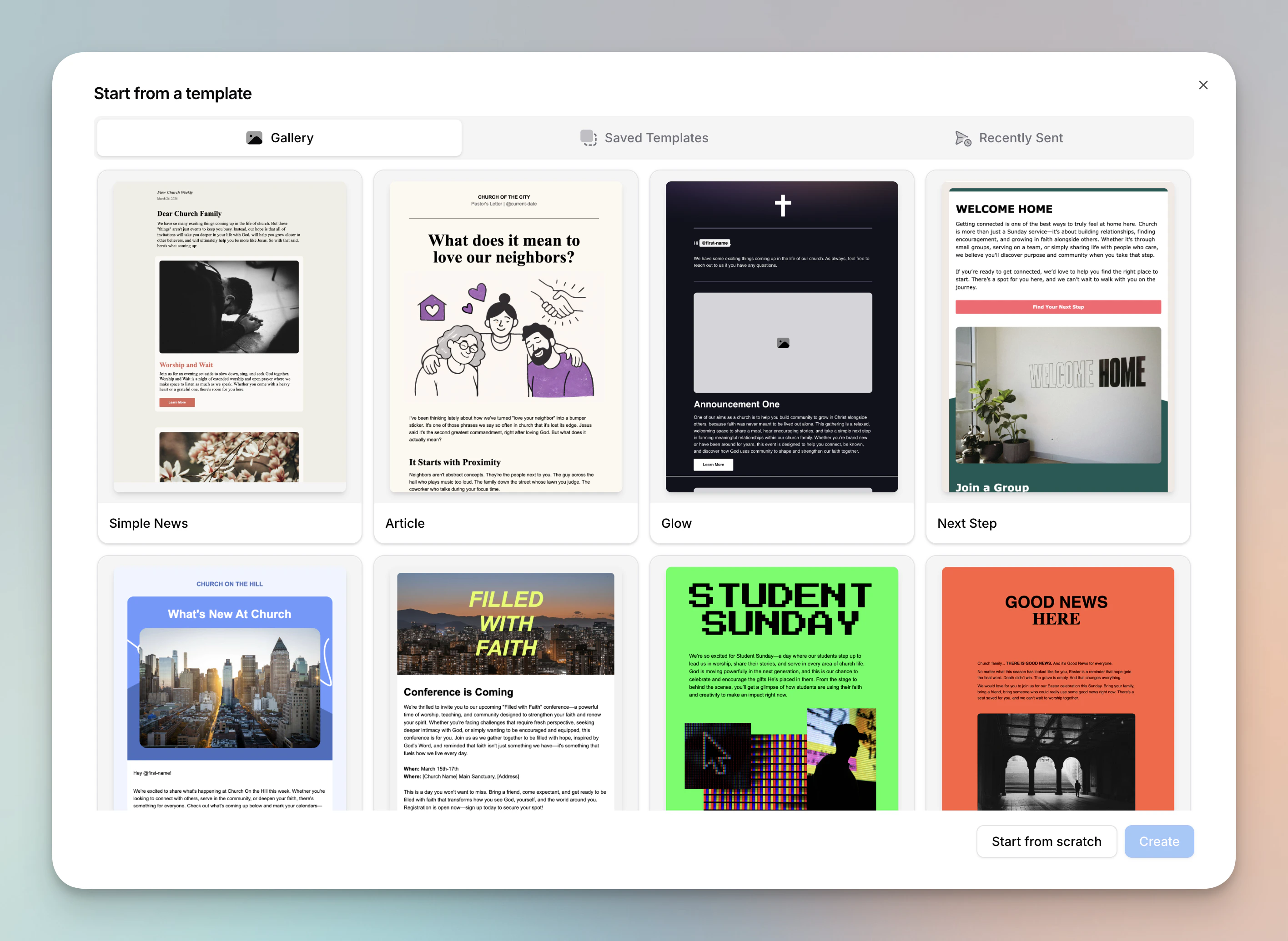
- Gallery - Browse a collection of pre-designed templates to get started quickly
- Saved Templates - Apply one of your saved templates
- Recently Sent - Start from the content or style of a recently sent email
Designing Your Email
Adding and Editing Blocks
- Drag blocks from the left sidebar into the email canvas
- Reorder blocks by dragging them within the canvas or using the arrow buttons to the right of the block
- Click a block to edit it in the sidebar (or edit text directly in the block)
- Use the formatting toolbar above the canvas for text formatting on text blocks
Duplicate or Delete a Block
- Click the block, then use the duplicate or trash icons to the right of the block or use the same options at the bottom of the sidebar.
Previewing for Mobile
Use the floating Desktop / Mobile toggle at the bottom-right of the editor to check how your email looks on a phone. Switch to Mobile and the canvas re-renders at phone width — columns stack, and the mobile font sizes and block spacing overrides you’ve set take effect. This is a preview only — it never changes your email or how it sends. To set the mobile font sizes it uses, see Email Styles.Editing the Footer
- Click on the footer or select Footer in the sidebar
- Pick a Layout — Classic, Editorial, or Minimal — and a Spacing option at the top of the settings
- Edit the content, logo, social links, and text links
- Click the refresh icon to reset to your default footer
- Click the save icon to save this version as your new default footer
Editing Email Style
Click on Styles in the sidebar to customize general appearance, text defaults, button defaults, divider defaults, image defaults, and more. For a full guide on all style options, see Email Styles.Setting Email Details
Go to the email’s detail page by clicking “Save and Exit” if you’re in the editor or by clicking on the email in the Emails table.TO
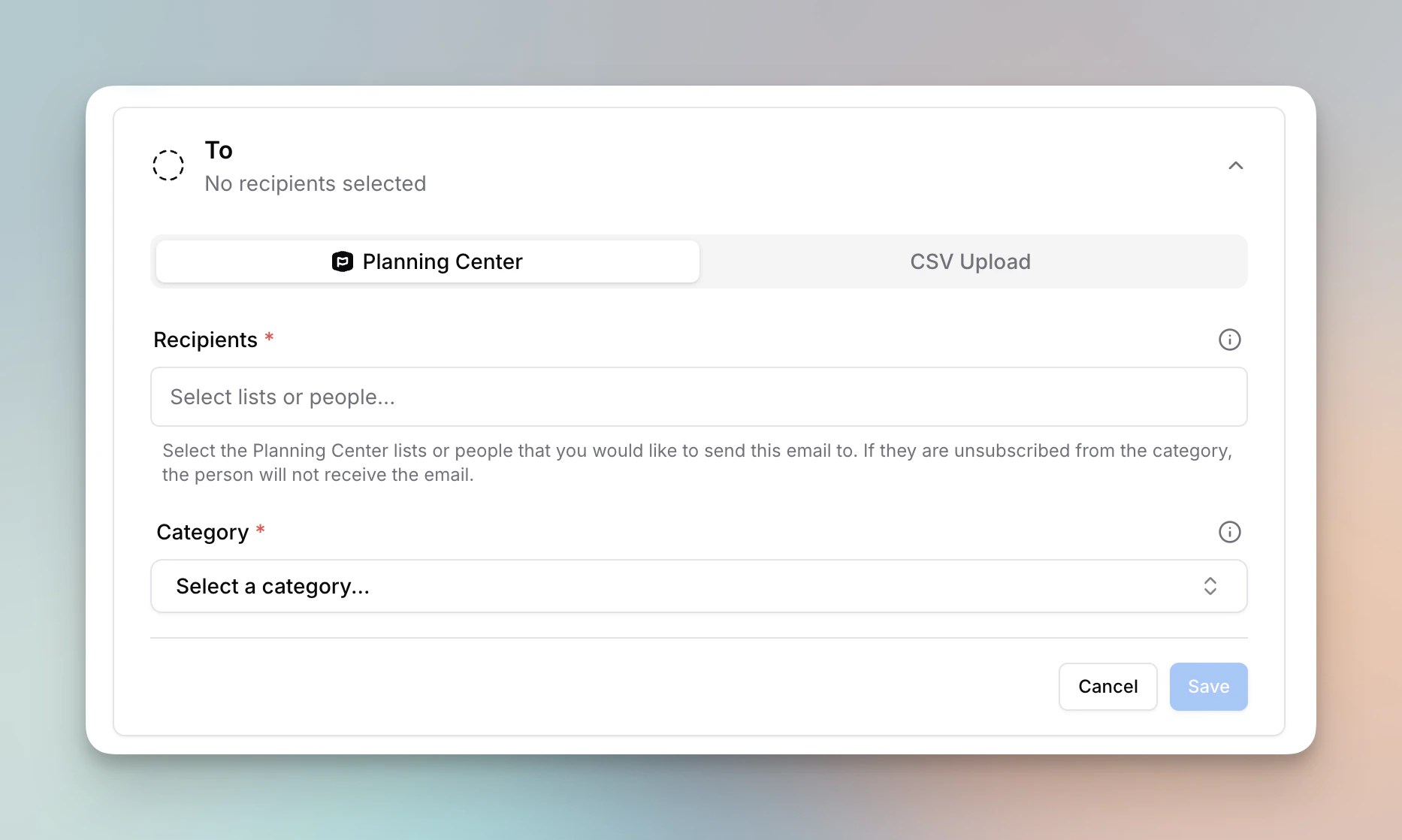
- Planning Center - Select Planning Center lists, individual people, groups, and registrations as recipients. Filter chips at the top of the picker — All, Lists, People, Registrations, and Groups — let you narrow what you’re browsing. Lists load by default, People are search-only, and Groups and Registrations load when you select their chip or appear when you search from All. A Campus filter narrows every section — Lists, People, Groups, and Registrations — to a single campus, while the List Category filter appears only on the All and Lists views, where it applies.
- CSV Upload - Upload a CSV file of email addresses to send to. This is useful when you need to send to a list of people that isn’t managed in Planning Center.
The displayed count on each list is the count in Planning Center. Actual recipients may be fewer due to unsubscribes, missing emails, or duplicates.
Leaving People Out
To keep certain people from getting an email, click Exclude next to Recipients on the Planning Center tab. It appears once you’ve added at least one recipient. A Don’t send to field opens where you can pick lists, individual people, groups, or registrations to leave out. Click Cancel to close it again while it’s empty.- Anyone in Don’t send to is left out when the email sends, even if one of your recipients also includes them. For example, send to All Members and exclude Staff to reach every member who isn’t on staff.
- The same list, person, group, or registration can’t be both a recipient and excluded. Each picker marks what the other already holds (In To or Excluded).
- Once anything is excluded, the field becomes a highlighted panel with a count, so it’s easy to see that the email leaves people out.
- The send confirmation lists exclusions under To as Except anyone in, and the sent email’s Audience card shows them in an Except row.
- Duplicating an email copies its exclusions, so the copy doesn’t reach people the original left out.
- Exclusions can be changed on drafts and failed sends. They aren’t available for CSV Upload audiences or follow-ups.
An email that excludes anyone can’t also send a Church Center notification, because the notification would reach the people you left out.
You can save the To section with just a category or just recipients, so you can set up an email in stages. You’ll still need both a category and at least one recipient before the email can be sent.
How Filtering and De-Duplication Works
When you send to multiple lists, individual people, or a CSV upload, Flowforth automatically handles filtering and de-duplication so no one receives the email more than once:- People are collected from all selected lists, groups, registrations, and any individually added people.
- Excluded people are removed — anyone in Don’t send to is taken out, even if they’re also in one of your recipients.
- Duplicate people are removed — if the same person appears on multiple lists, or is on a list and also added individually, they are identified by their Planning Center profile and only included once.
- Subscription filters are applied — people who are unsubscribed from your organization’s emails, unsubscribed from the email’s category, or have no email address on file are excluded.
- No-reply addresses are removed — email addresses containing “no-reply” or “noreply” are filtered out.
- Final email de-duplication — as a last step, any remaining duplicate email addresses (e.g. two different people sharing the same email) are caught and de-duplicated so only one copy is delivered per address.
FROM
- From Email: The part before the
@of your sending address - From Name: The sender name shown in the inbox
- Reply-to Address: Where replies to this email will go
SUBJECT
- Subject: What appears as the subject line in the inbox
- Preview Text: The summary text shown in inboxes (not visible in the email)
SEND TIME
- Send Now: The email will send when you click Send Now in the top right and then confirm
- Schedule: Pick a date and time at least 10 minutes in the future (time shown in your local timezone)
The email is not officially scheduled until you click Schedule and confirm.
Testing Your Email
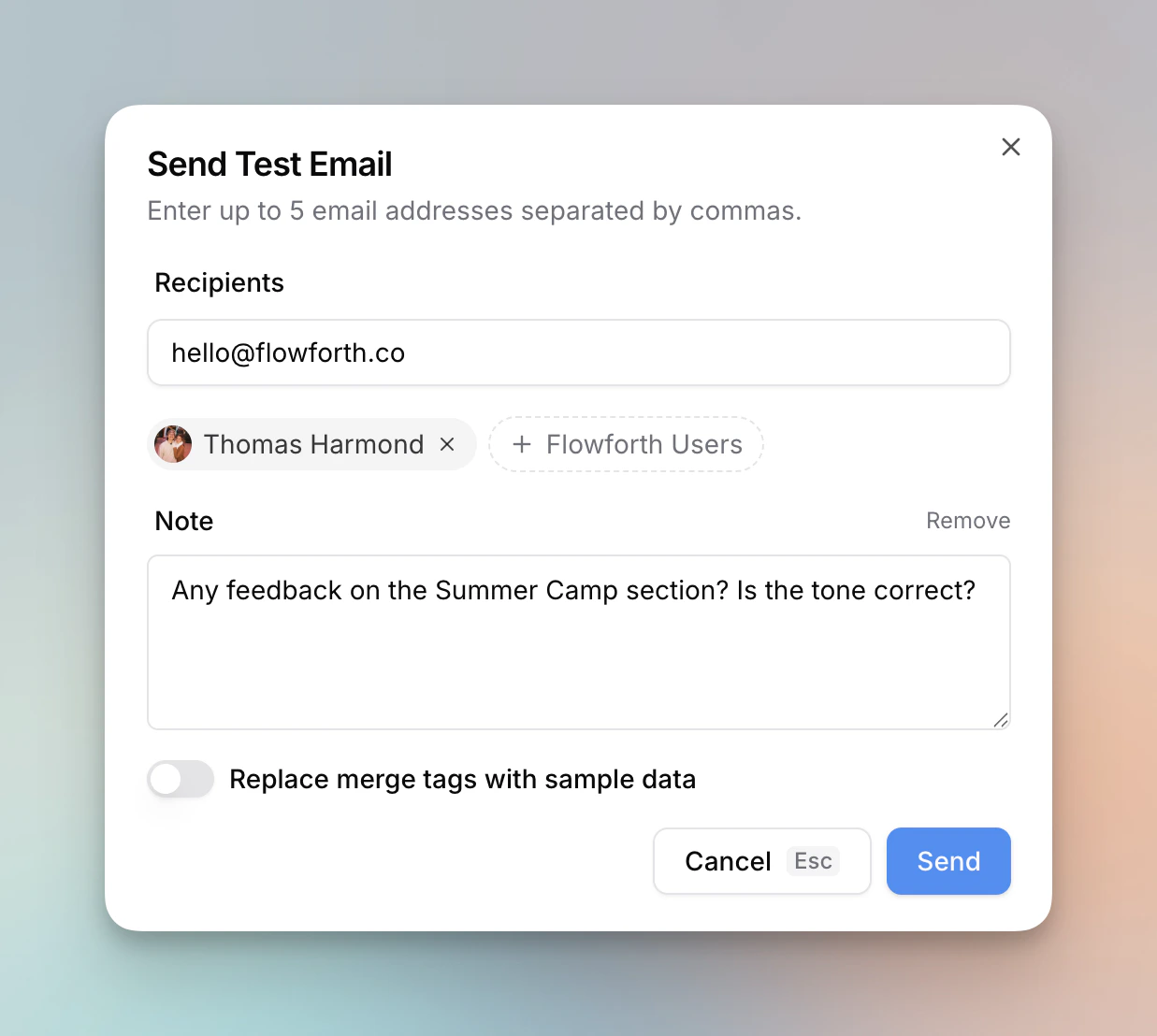
- Recipients - Enter up to 5 email addresses separated by commas, or click + Flowforth Users to quickly add team members from your organization
- Note - Add an optional note that appears at the top of the test email, useful for asking reviewers for specific feedback
- Replace merge tags with sample data - Toggle this on to preview how merge tags will look with real data instead of showing the raw tag names
- Test emails do not count against your send limit
Other Notes
- Email appearance may vary slightly across email clients (Gmail, Outlook, Apple Mail, etc.)
- We follow modern HTML email standards and work to minimize rendering differences
- If you notice display issues, let us know at support@flowforth.co and we’ll help resolve it
Ready to design and send your first email? Head to Flowforth Emails to get started.