

Creating a Canva Email
- Go to Emails and click New Email.
- Select Canva as the email type.
- Enter an internal name for your email and optionally choose a folder.
- Click Create to open the Canva design browser.
- Browse or search for the Canva Email template you want to use.
- Click the design to start the import.
You must have a Canva account connected to create Canva emails. If you haven’t connected yet, go to Settings > Integrations > Canva to set up the connection. See Canva Integration for details.
What Gets Imported
When Flowforth processes your Canva Email template, it imports:- The full HTML layout of the email
- All images used in the design, uploaded to your Flowforth asset library
- Links and formatting from the original design
Setting Up Email Links in Canva
Before importing your design, use Canva’s built-in Email links to add unsubscribe, update preferences, and view in browser links to your template. When adding a link to any element in Canva, you’ll see these options under the Email links section.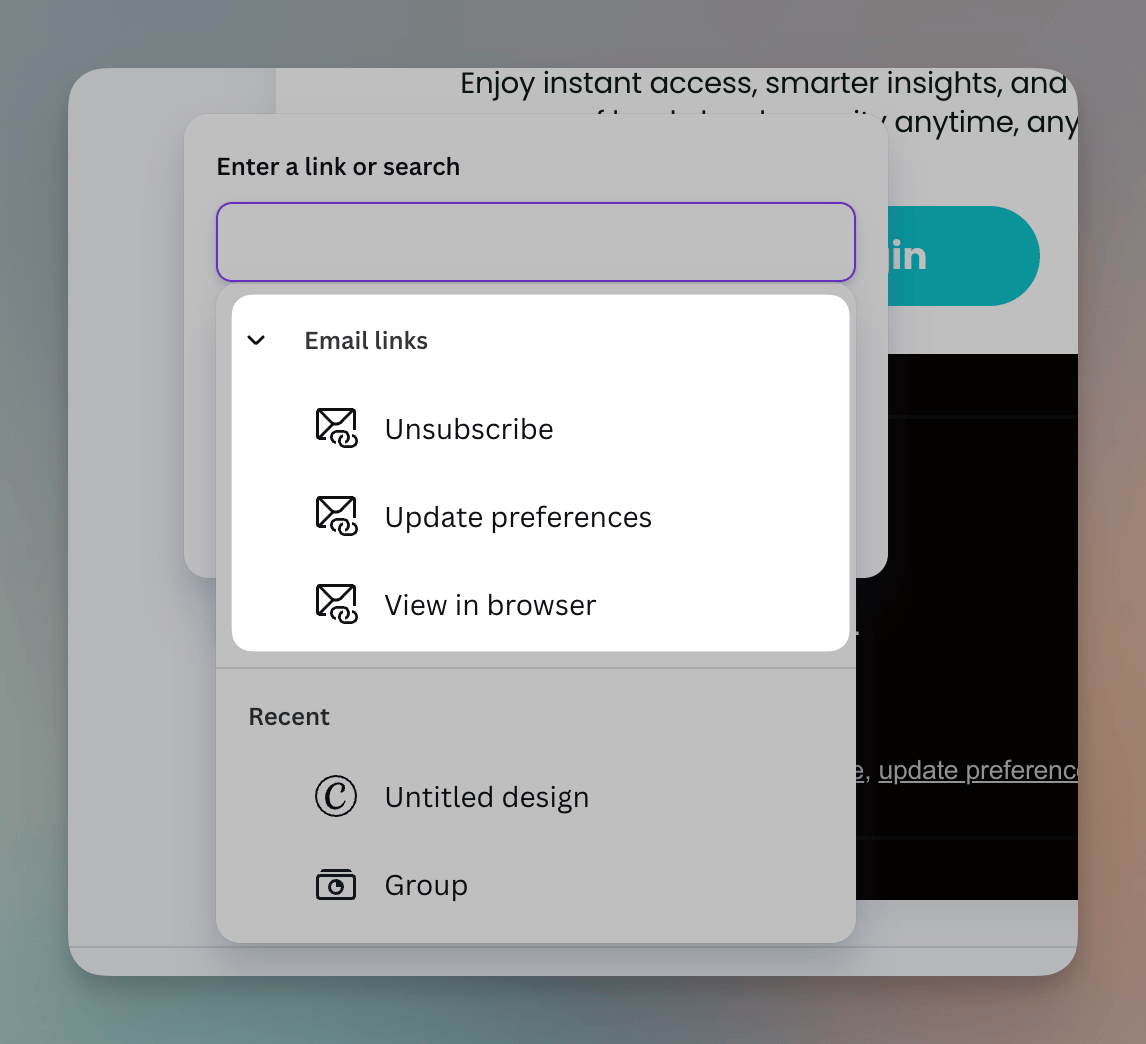
This means your imported email is ready to send with working unsubscribe and preference management links, no manual editing needed.
An unsubscribe link is required on all emails. If your design doesn’t include one, Flowforth will automatically add a plain-text unsubscribe link to the bottom of your email when it’s sent.
Creating an Email Design in Canva
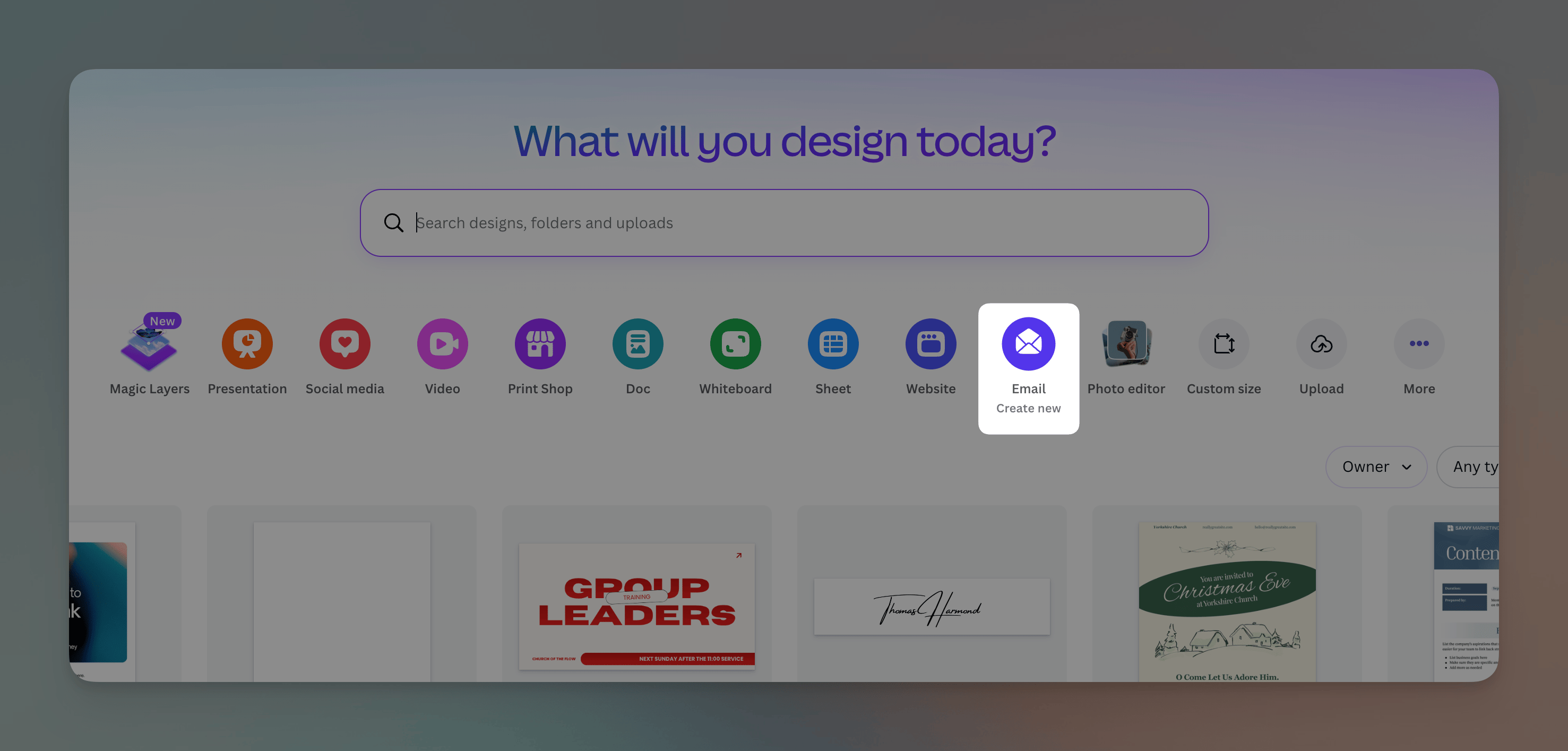
Only designs created using Canva’s Email template type can be imported as Canva emails. If you select a design that is not an Email template, you’ll see an error message letting you know. To create an Email design in Canva:- From the Canva homepage, click the Email icon in the design type row.
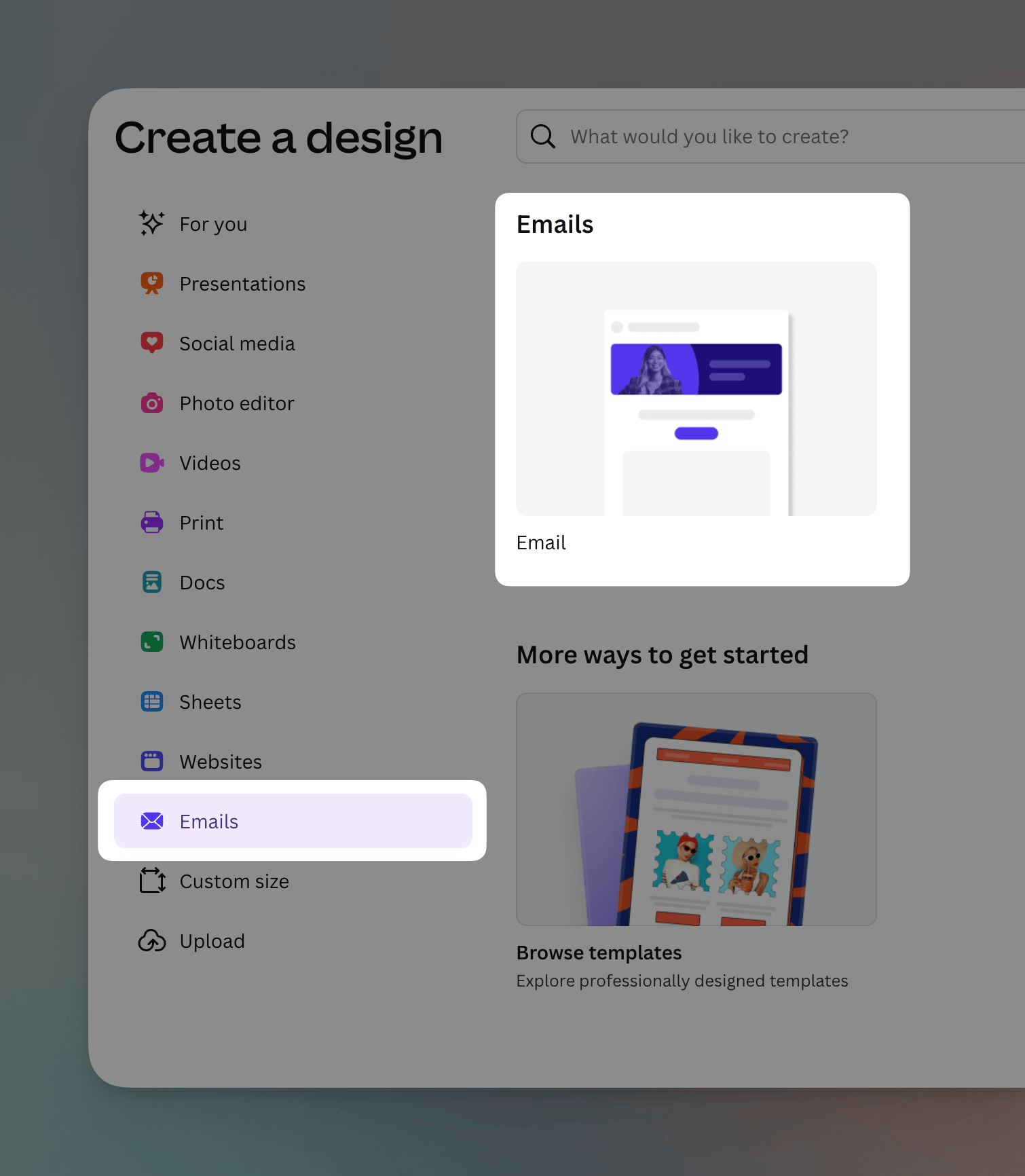
- Or click the Create button in the sidebar, then select Emails.
Editing a Canva Email
Canva emails are HTML-based, so they open in the HTML editor. You can make changes to the HTML directly, use merge tags, and access your asset library, just like any other HTML email.Refreshing a Canva Email
Flowforth remembers which Canva design an email came from, so if you keep editing the design in Canva you can pull the latest version into the email you already created.- Open the email and find the Content section.
- Click Refresh from Canva. (The Canva-logo half of the button opens the design in Canva instead.)
- Confirm in the Refresh from Canva? dialog — “This will replace the email content with the current version of the Canva design. Any changes made in the HTML editor will be lost.”
- Draft and failed emails only. Once an email has been sent or scheduled, it can’t be refreshed — you’ll see “Only unsent emails can be refreshed from Canva.”
- You need a connected Canva account. The button only appears when your Canva integration is connected.
- Only the person who imported the email can refresh it. Everyone else sees the button disabled with the tooltip “Only the person who imported this email can refresh it.” Older Canva emails with no recorded importer can be refreshed by anyone.
- The design still has to be an email design. If it was converted to another design type in Canva, you’ll see “This Canva design is no longer an email design, so it can’t be re-imported.”
Replicating a Canva email keeps the link to the Canva design, so the copy is refreshable too — and whoever replicated it becomes the person who can refresh it.
Tips
- Design in Canva, send in Flowforth. Use Canva’s visual tools to design your email, then import it into Flowforth to handle recipients, scheduling, metrics, and delivery.
- Update your design. If you make changes to your Canva design after importing, click Refresh from Canva on the email to pull the new version in — no need to start over.
- Test before sending. Always send a test email after importing to make sure everything looks right across different email clients.
Need help with Canva emails? Contact support@flowforth.co.