

Creating a Simple Email
- Go to Emails and click New Email.
- In the new email popup, select Simple as the email type.
- Enter a subject and optionally choose a folder.
- Click Create and the editor will open automatically.
The Simple Email Editor
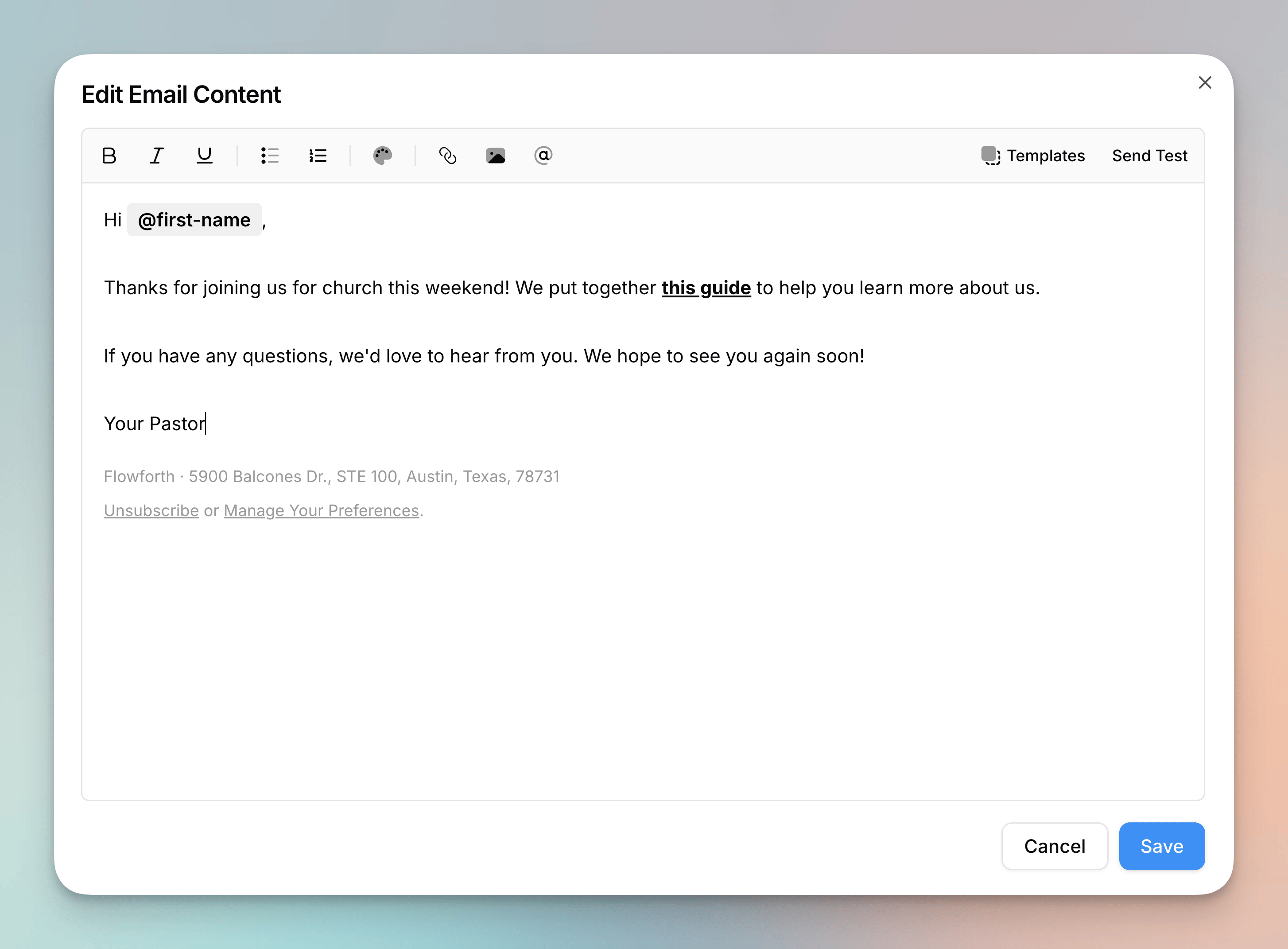
Text Formatting
The toolbar includes:- Bold, Italic, and Underline for basic text styling
- Bullet lists and Numbered lists for organized content
- Text color picker to change the color of selected text
Links
Click the link icon in the toolbar to add a link to selected text. You can choose from the same link types available in the drag-and-drop editor:- URL: A standard web link
- Email: Opens the recipient’s email client
- Phone and SMS: For calling or texting
- File: Link to a file from your asset library
- Planning Center: Browse and link to Planning Center content (Forms, Registrations, Groups, Calendar Events, etc.)
Images
You can add images to your simple email in two ways:- Click the image icon in the toolbar to open the asset browser and select an image
- Drag and drop an image file directly into the editor
Merge Tags
Click the @ icon in the toolbar to insert a merge tag at your cursor position. Available merge tags include first name, last name, email address, view in browser link, unsubscribe link, manage preferences link, current date, current month, and current year. You can also type merge tags directly (e.g.,@first-name) just like in the drag-and-drop editor.
For a full list of available merge tags, see Merge Tags.
Person Block
You can add a person block to your simple email to attribute the message to a specific person, such as a pastor or staff member. Click the Person button in the toolbar to insert a person block or load one from your saved people. When editing, click on the person block in your content to open its editor. You can set a name, subtitle, avatar, social links, and customize colors and sizing, just like in the drag-and-drop editor. You can also import a person directly from Planning Center if your organization is connected.Simple emails support one person block per email. Inserting a new person block
will replace any existing one.
Test Emails
You can send a test email directly from the editor using the Send Test button in the toolbar. Your content is automatically saved before the test is sent.Footer
Simple emails automatically include a footer with your organization name, address, and unsubscribe/manage preferences links. This footer is required for bulk sending and cannot be removed. You can see a preview of the footer at the bottom of the editor. To update the information shown in the footer, go to Settings > Organization and update your organization name and address.Saving
Your content is saved when you click the Save button in the editor dialog. If you try to close the editor with unsaved changes, you will be prompted to either save or discard your changes.Previewing and Sending
After writing your content, close the editor to return to the email detail page. You will see a preview of your simple email in the content section. From here, configure your recipients, category, and schedule just like any other email. For details on setting recipients, scheduling, and sending, see Creating and Sending Emails.When to Use Simple Emails
Simple emails work well for:- Personal messages from a pastor, leader, or staff member
- Quick updates that do not need heavy design
- Follow-ups or thank-you notes
- Internal communications to your team or volunteers
Need help with simple emails? Contact support@flowforth.co.