

On mobile, blocks can’t be dragged. Instead, you add blocks with the + buttons and move them with the up and down arrows, as described below.
The Mobile Editor
The mobile editor has three parts: a top bar, the canvas, and a floating bottom bar. Top bar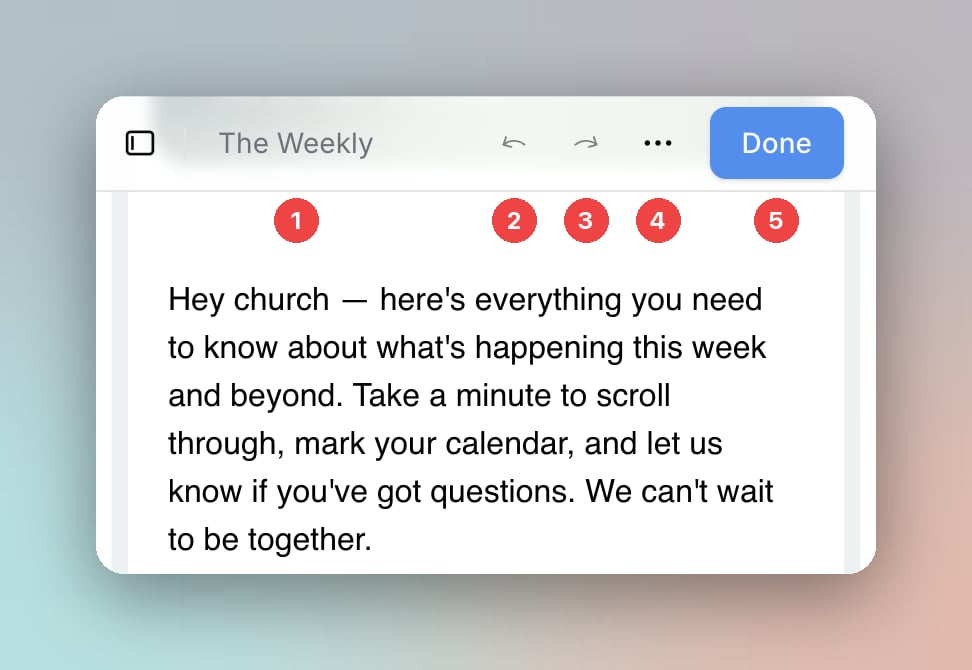
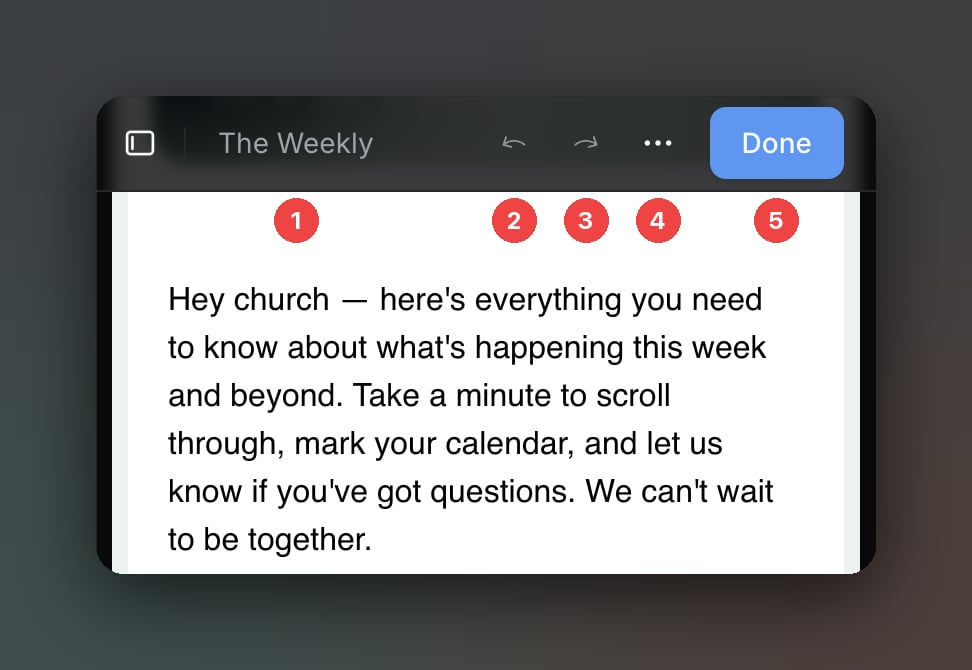
- Your email’s subject
- Undo
- Redo
- The More options menu
- Done
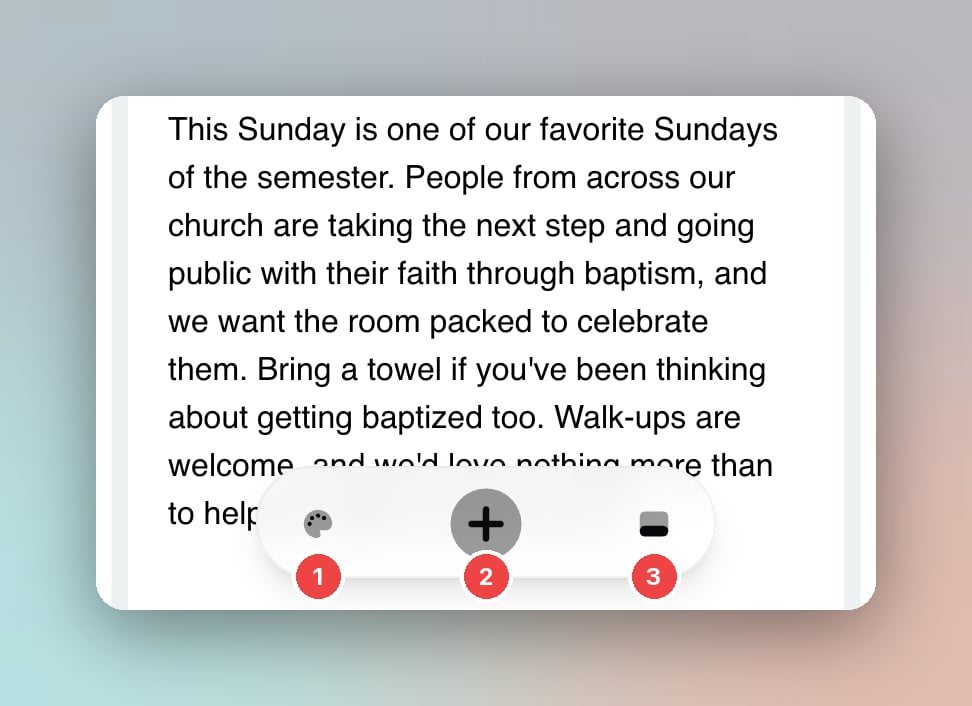
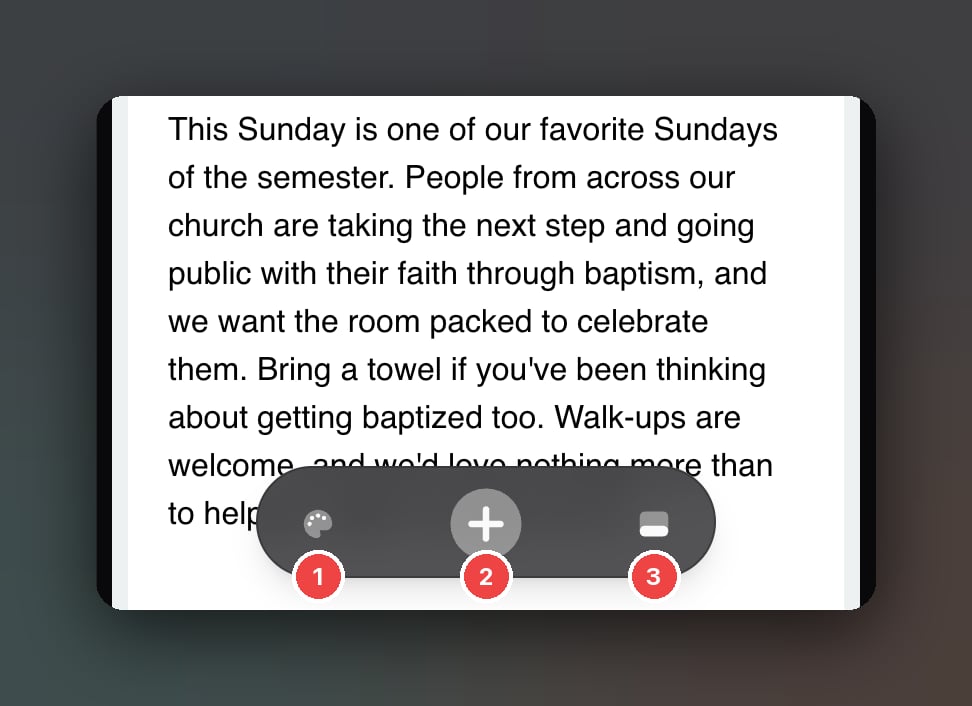
- Styles (the palette icon)
- Add Block (the + button)
- Footer
Adding a Block
- Tap the + button in the bottom bar. The bar opens into the Add Block panel.
- Tap the block you want, like Text, Image, or Button.
Importing from Planning Center
The bottom of the Add Block panel has Import from Planning Center, so you can add events, groups, registrations, and more from your phone. See Importing Content from Planning Center.Editing a Block
Tap a block to select it. A toolbar appears at its top-right corner with these buttons:- Up and Down arrows: move the block one spot up or down in the email
- Duplicate: add a copy of the block
- Edit (the pencil icon): open the block’s settings
- Delete: remove the block
Editing Text
Tap a text block and type directly on the canvas. While a text block is selected, the formatting toolbar sits just below the top bar. Swipe it left and right to reach every option, like headings, bold, links, and alignment. See Text Block.Editing Columns
Columns are stacked on mobile, so each column’s content appears one after another. Tap the content inside a column to select it, then tap Edit to change its settings. See Columns and Layouts.Styles and Footer
- Tap Styles (the palette icon) in the bottom bar to change your email-wide colors, fonts, and spacing. See Email Styles.
- Tap Footer in the bottom bar, or tap the footer on the canvas, to edit your email’s footer. See Default Footer.
More Options
Tap More options (the three dots) in the top bar for:- Version History: see and restore earlier versions of your email. See Version History.
- Editor Settings: change how the editor works for you. See Editor Settings.
- Help and Support: get help without leaving the editor.
Previewing and Testing on Mobile
Preview and Send Test aren’t in the editor’s top bar on phones. To check your email before it goes out:1
Leave the editor
Tap Done to save and leave the editor.
2
Open the menu
On the email’s page, tap the three-dot menu.
3
Preview or test
Tap Preview Email to see the full email, or Send Test to send a copy to yourself or your team. See Test Emails.
Tips
- Use the mobile editor for quick changes, like fixing a typo, swapping an image, or updating a date. For big redesigns with lots of layout changes, a computer gives you drag and drop and more room to work.
- Rotating a small tablet to landscape can switch it to the full desktop editor, with the sidebar and drag and drop.
- To fine-tune how your email looks on phones, set mobile font sizes in Email Styles and mobile spacing in a block’s style.