

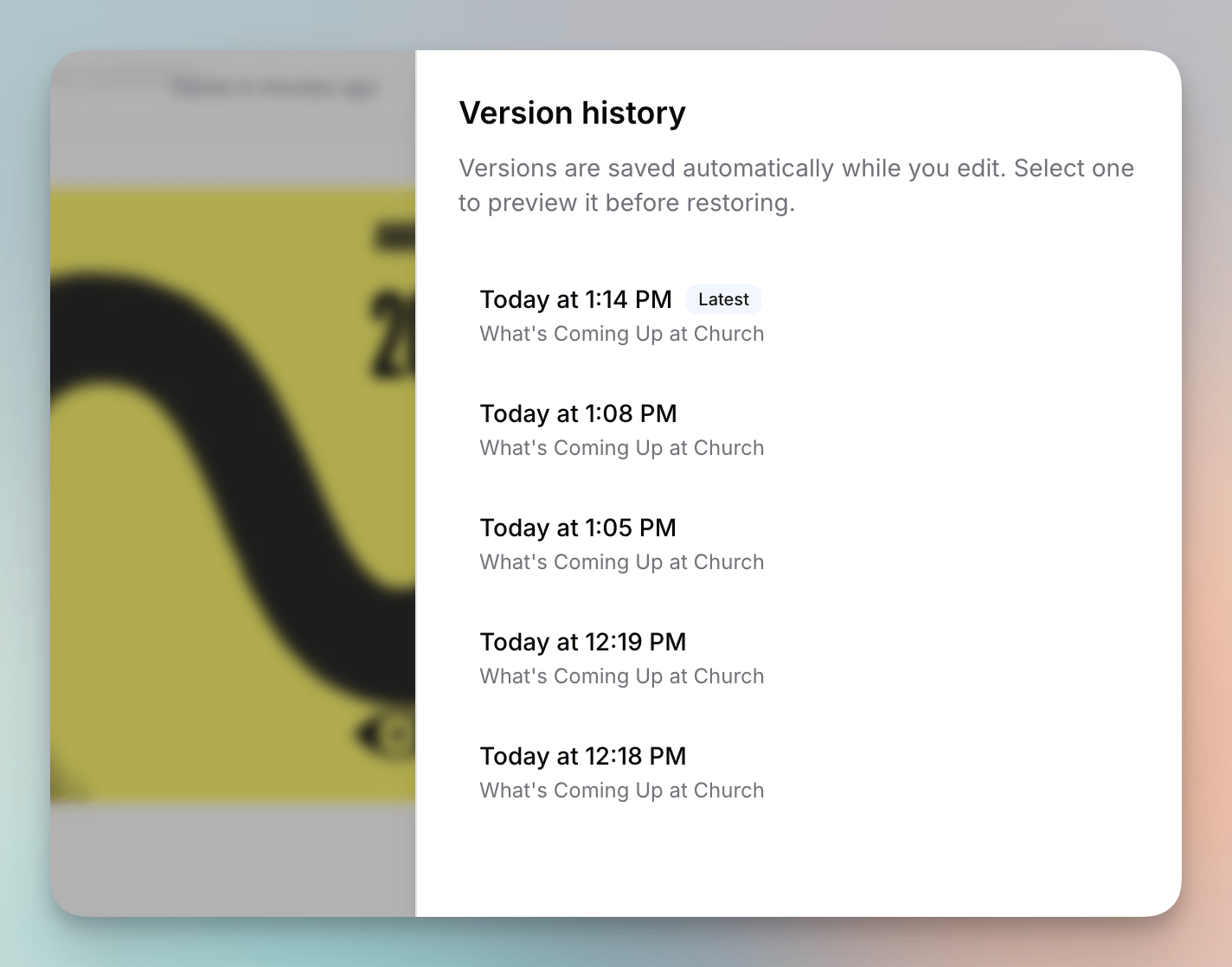
Opening Version History
In the drag-and-drop email editor, click the three-dot menu (⋯) in the top right and choose Version history. A panel opens listing your saved versions, newest first, with the most recent labeled Latest.Version history is available for standard drag-and-drop emails only. It isn’t kept for simple emails, HTML emails, Canva emails, or email templates.
How Versions Are Saved
- Versions are captured automatically as you edit — you don’t need to do anything to save one.
- A new version is recorded after your edits settle, and one is always captured when you close the editor (via Save and Exit, the breadcrumbs, or navigating away).
- Identical states aren’t duplicated — if nothing changed, no new version is added.
- Flowforth keeps the 50 most recent versions of each email. Older versions are removed as new ones are saved.
Previewing and Restoring a Version
- Open Version history and click a version to preview it. You’ll see exactly how that version looked, so you never restore blind.
- If it’s the one you want, click Restore from within the preview.