

- Sharing your newsletter on social media
- Adding an archive link to your website
- Letting people who aren’t on your list see what you sent
How to Share an Email
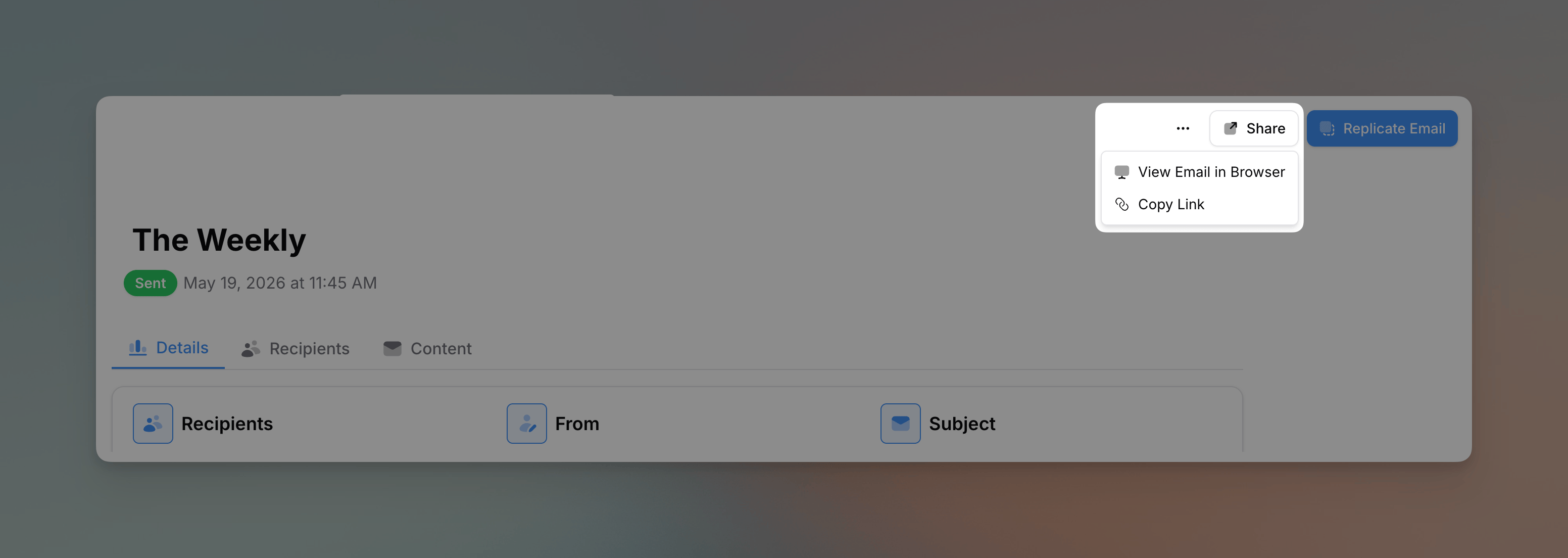
- Go to Emails and click on a sent email
- Click the Share button in the top right
- Choose one of the options:
- Show on public page - Controls whether this email is publicly viewable. It’s on by default; turning it off hides the email from the category’s public page and stops its link from working, which removes the other sharing options below. See Hiding a Single Email
- View Email in Browser - Opens the email in a new tab
- Copy Link - Copies the shareable URL to your clipboard
Want to share an email before it goes out? You can make a draft or scheduled email viewable early by turning on Visible before sent. See Sharing an Email Before It’s Sent.
The email must be assigned to a category that has its public page enabled in order to be shareable.
What Recipients See
When someone visits the shared link, they see:- The full email content as it was sent
- All images, links, and formatting
- A clean, web-optimized view
What’s Not Shown
- Recipient-specific merge tags (they see generic placeholders or are left blank)
- Tracking pixels
- Unsubscribe links (these are personalized per recipient)
Link Format
Shared email links point to the email’s page on your organization’s public category pages:flowforth.co subdomain.
These links:
- Are permanent and don’t expire
- Can be shared anywhere (social media, websites, etc.)
- Don’t require login to view
Use Cases
Social Media
Share your weekly newsletter on Facebook, Instagram, or X (Twitter) so followers who aren’t subscribed can see what they’re missing.Website Archive
Create a “Past Newsletters” page on your church website with links to previous emails.Forwarding
Instead of forwarding an email (which can break formatting), send the web link so recipients see the email exactly as designed.Board or Staff Updates
Share email updates with board members or staff who may not be on the recipient list.Adding a “View in Browser” Link to Your Email
You can add a “View in Browser” link directly in your email using the@view-in-browser merge tag. This gives recipients a way to view the email in their browser if it’s not displaying correctly in their email client.
- Add a text block to your email (usually at the top)
- Type something like: “Having trouble viewing this email? @view-in-browser”
- The merge tag will be replaced with a clickable link when sent
If you have questions about sharing emails, reach out to support@flowforth.co.