> ## Documentation Index
> Fetch the complete documentation index at: https://help.flowforth.co/llms.txt
> Use this file to discover all available pages before exploring further.
# Switching to Flowforth from Mailchimp
> Learn how to export your contacts from Mailchimp so you can import them into Flowforth.
If you're moving to Flowforth from Mailchimp, you'll want to export your contacts, especially your **subscribed**, **unsubscribed**, and **cleaned** lists. Here's how to get those files quickly and simply.
***
## Step 1: Export Your Full Audience
You can view Mailchimp's full export guide at
[https://mailchimp.com/help/view-export-contacts/](https://mailchimp.com/help/view-export-contacts/).
1. In Mailchimp, click **Audience** on the sidebar.
2. If you have more than one audience, choose the one you want to export.
3. Click **Export Audience**.
4. In the popup, click **Confirm Export**.
5. When the file is ready, click **Download CSV**. (If you have a large audience, Mailchimp may send you an email with a download link.)
6. Unzip this file. You should have three CSV files: subscribed, unsubscribed, and cleaned. We need all three.
***
## Step 2: Import to Flowforth
Once you have your exported files, follow our guide:\
[**Importing People via CSV**](https://help.flowforth.co/people/importing-people)
That guide will walk you through:
* Uploading your contacts and selecting their email status
* Reviewing matches against your Planning Center data
* How Flowforth handles new and existing contacts
We recommend reviewing and cleaning your spreadsheet before uploading to get
the best results.
***
## Suggested Reading
Once you've imported your contacts, learn more about using Flowforth:
* [**Lists vs Categories**](/emails/lists-vs-categories) - Understand the difference between Planning Center lists and Flowforth categories, and how they work together to give recipients control over their preferences.
* [**Roles and Permissions**](/organization/roles-and-permissions) - Configure roles and permissions for your team.
* [**Manage and Invite Members**](/organization/manage-and-invite-members) - Invite your team to Flowforth.
***
Need help exporting or importing your lists? Contact [support@flowforth.co](mailto:support@flowforth.co).
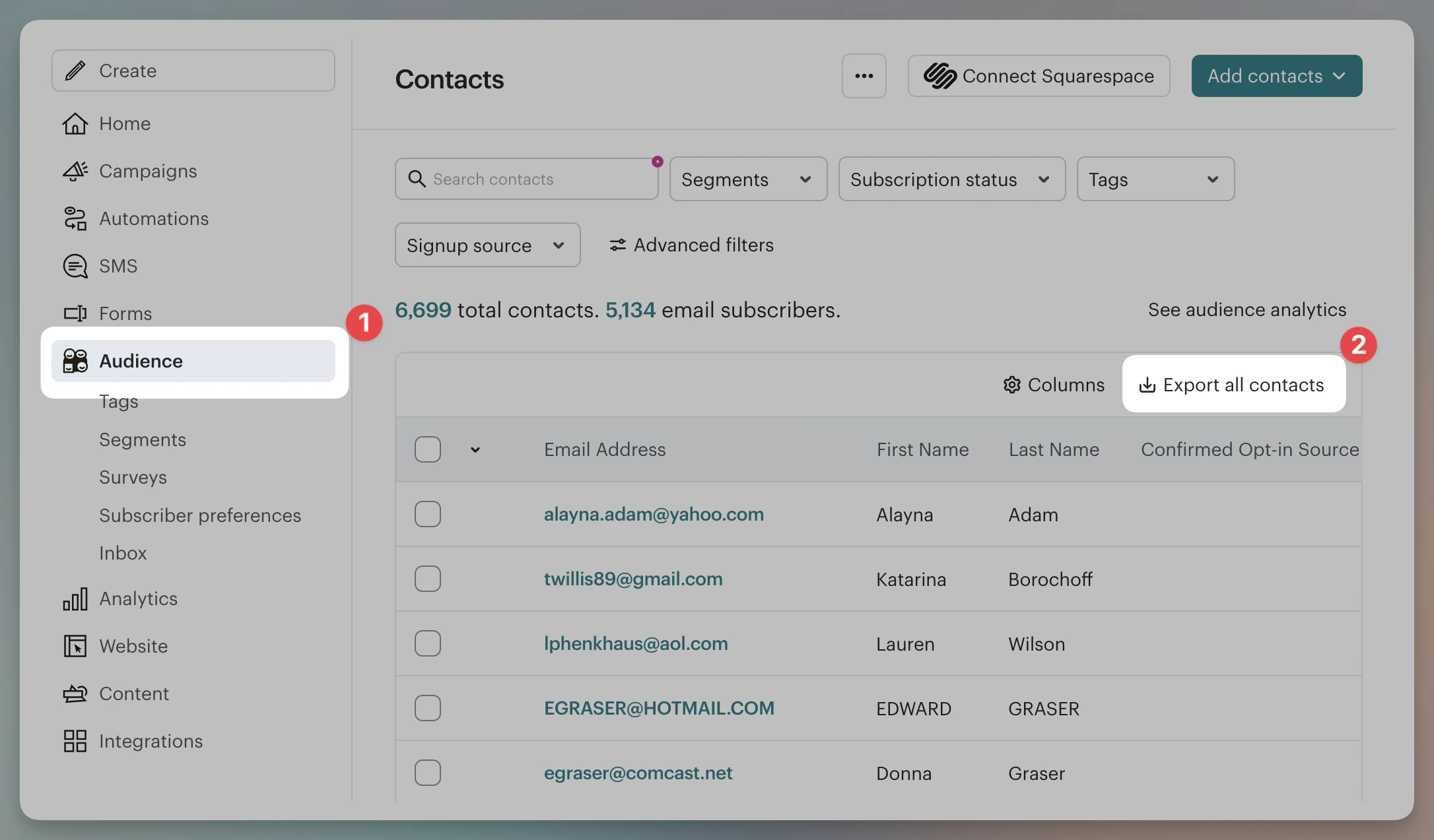 1. In Mailchimp, click **Audience** on the sidebar.
2. If you have more than one audience, choose the one you want to export.
3. Click **Export Audience**.
4. In the popup, click **Confirm Export**.
5. When the file is ready, click **Download CSV**. (If you have a large audience, Mailchimp may send you an email with a download link.)
6. Unzip this file. You should have three CSV files: subscribed, unsubscribed, and cleaned. We need all three.
***
## Step 2: Import to Flowforth
Once you have your exported files, follow our guide:\
[**Importing People via CSV**](https://help.flowforth.co/people/importing-people)
That guide will walk you through:
* Uploading your contacts and selecting their email status
* Reviewing matches against your Planning Center data
* How Flowforth handles new and existing contacts
1. In Mailchimp, click **Audience** on the sidebar.
2. If you have more than one audience, choose the one you want to export.
3. Click **Export Audience**.
4. In the popup, click **Confirm Export**.
5. When the file is ready, click **Download CSV**. (If you have a large audience, Mailchimp may send you an email with a download link.)
6. Unzip this file. You should have three CSV files: subscribed, unsubscribed, and cleaned. We need all three.
***
## Step 2: Import to Flowforth
Once you have your exported files, follow our guide:\
[**Importing People via CSV**](https://help.flowforth.co/people/importing-people)
That guide will walk you through:
* Uploading your contacts and selecting their email status
* Reviewing matches against your Planning Center data
* How Flowforth handles new and existing contacts