> ## Documentation Index
> Fetch the complete documentation index at: https://help.flowforth.co/llms.txt
> Use this file to discover all available pages before exploring further.
# GIF Generator
> Create GIFs from a series of images directly in Flowforth.
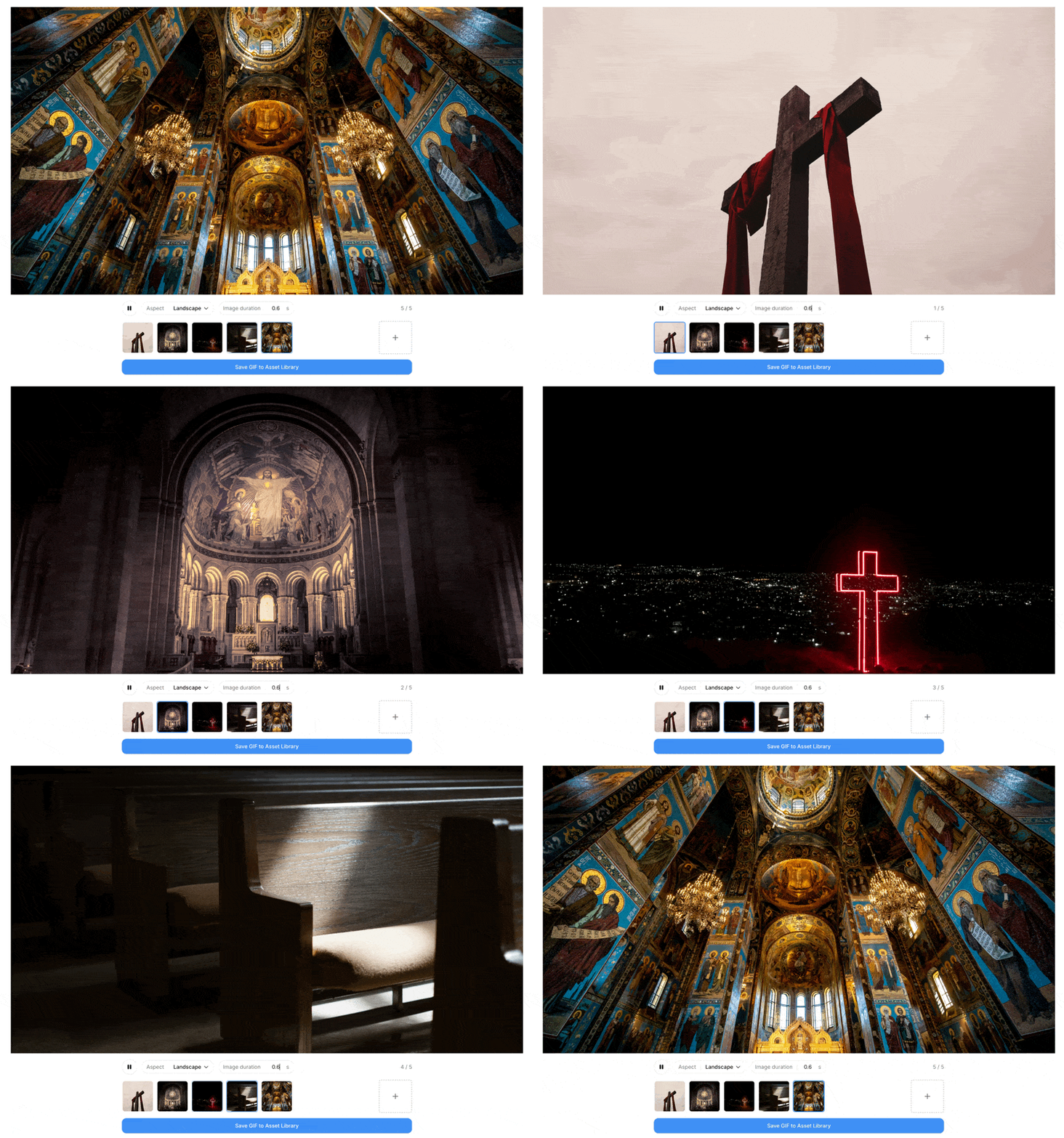 Flowforth's GIF generator lets you create animated GIFs from a series of images without leaving the app. You can find it in the **Content** section of the sidebar.
***
## Adding Images
You can add images in two ways:
* Click the **Add Images** button and select files from your device
* **Drag and drop** images directly into the generator
You can add up to **10 images** per GIF. To reorder frames, drag and drop the thumbnails in the image strip at the bottom.
***
## Adjusting Settings
### Aspect Ratio
Use the **Aspect** dropdown to choose a preset dimension for your GIF:
| Preset | Dimensions |
| --------- | ----------- |
| Landscape | 1920 x 1080 |
| Square | 1080 x 1080 |
| Vertical | 1080 x 1920 |
| Portrait | 1080 x 1350 |
| Square HD | 720 x 720 |
If your uploaded images have unique dimensions, they will also appear as options. You can also select **Custom** to enter your own width and height (up to 4096 px).
Images are scaled to fill the chosen dimensions using a cover fit, with any remaining space filled in black.
### Frame Duration
Set how long each frame is displayed using the **Image duration** control. You can type a value directly or drag the label up and down to adjust. Duration can be set between **0.2** and **1.2 seconds**.
***
## Previewing
The canvas shows a live preview of how your GIF will look. Use the **play/pause** button to start or stop the animation. Clicking a thumbnail in the image strip jumps to that frame.
***
## Saving Your GIF
1. Click **Save GIF to Asset Library**
2. Enter a name for your GIF
3. Click **Save**
Your GIF will be generated and uploaded directly to the **Asset Library**, where you can use it in emails like any other image.
***
Need help? Contact [support@flowforth.co](mailto:support@flowforth.co).
Flowforth's GIF generator lets you create animated GIFs from a series of images without leaving the app. You can find it in the **Content** section of the sidebar.
***
## Adding Images
You can add images in two ways:
* Click the **Add Images** button and select files from your device
* **Drag and drop** images directly into the generator
You can add up to **10 images** per GIF. To reorder frames, drag and drop the thumbnails in the image strip at the bottom.
***
## Adjusting Settings
### Aspect Ratio
Use the **Aspect** dropdown to choose a preset dimension for your GIF:
| Preset | Dimensions |
| --------- | ----------- |
| Landscape | 1920 x 1080 |
| Square | 1080 x 1080 |
| Vertical | 1080 x 1920 |
| Portrait | 1080 x 1350 |
| Square HD | 720 x 720 |
If your uploaded images have unique dimensions, they will also appear as options. You can also select **Custom** to enter your own width and height (up to 4096 px).
Images are scaled to fill the chosen dimensions using a cover fit, with any remaining space filled in black.
### Frame Duration
Set how long each frame is displayed using the **Image duration** control. You can type a value directly or drag the label up and down to adjust. Duration can be set between **0.2** and **1.2 seconds**.
***
## Previewing
The canvas shows a live preview of how your GIF will look. Use the **play/pause** button to start or stop the animation. Clicking a thumbnail in the image strip jumps to that frame.
***
## Saving Your GIF
1. Click **Save GIF to Asset Library**
2. Enter a name for your GIF
3. Click **Save**
Your GIF will be generated and uploaded directly to the **Asset Library**, where you can use it in emails like any other image.
***
Need help? Contact [support@flowforth.co](mailto:support@flowforth.co).