> ## Documentation Index
> Fetch the complete documentation index at: https://help.flowforth.co/llms.txt
> Use this file to discover all available pages before exploring further.
# Version History
> Browse previous versions of your email and restore an earlier one if you need to.
Flowforth automatically saves versions of your email as you work, so you can look back at earlier drafts and restore one if you ever need to. This gives you peace of mind when making big changes — you can always get back to where you were.
 ***
## Opening Version History
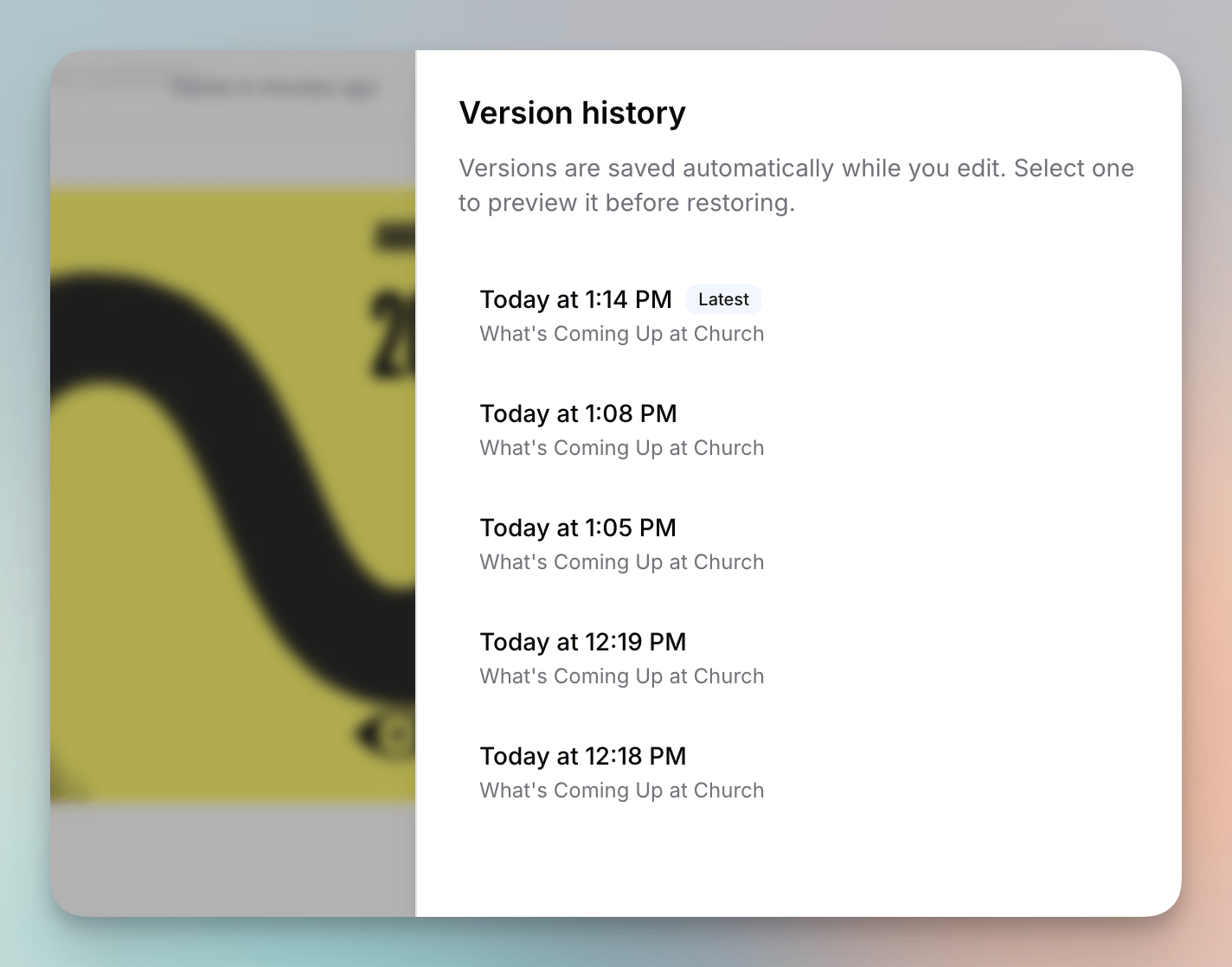
In the drag-and-drop email editor, click the **three-dot menu (⋯)** in the top right and choose **Version history**. A panel opens listing your saved versions, newest first, with the most recent labeled **Latest**.
Version history is available for standard drag-and-drop emails only. It isn't kept for [simple emails](/emails/simple-emails), [HTML emails](/emails/html-emails), [Canva emails](/emails/canva-emails), or email templates.
***
## How Versions Are Saved
* Versions are captured **automatically** as you edit — you don't need to do anything to save one.
* A new version is recorded after your edits settle, and one is always captured when you close the editor (via **Save and Exit**, the breadcrumbs, or navigating away).
* Identical states aren't duplicated — if nothing changed, no new version is added.
* Flowforth keeps the **50 most recent versions** of each email. Older versions are removed as new ones are saved.
***
## Previewing and Restoring a Version
1. Open **Version history** and click a version to **preview** it. You'll see exactly how that version looked, so you never restore blind.
2. If it's the one you want, click **Restore** from within the preview.
When you restore, Flowforth first saves a backup of your current content (shown in the list as **Backup before restore**), so restoring is always reversible — if you change your mind, you can restore that backup to get right back to where you were.
***
## Opening Version History
In the drag-and-drop email editor, click the **three-dot menu (⋯)** in the top right and choose **Version history**. A panel opens listing your saved versions, newest first, with the most recent labeled **Latest**.
Version history is available for standard drag-and-drop emails only. It isn't kept for [simple emails](/emails/simple-emails), [HTML emails](/emails/html-emails), [Canva emails](/emails/canva-emails), or email templates.
***
## How Versions Are Saved
* Versions are captured **automatically** as you edit — you don't need to do anything to save one.
* A new version is recorded after your edits settle, and one is always captured when you close the editor (via **Save and Exit**, the breadcrumbs, or navigating away).
* Identical states aren't duplicated — if nothing changed, no new version is added.
* Flowforth keeps the **50 most recent versions** of each email. Older versions are removed as new ones are saved.
***
## Previewing and Restoring a Version
1. Open **Version history** and click a version to **preview** it. You'll see exactly how that version looked, so you never restore blind.
2. If it's the one you want, click **Restore** from within the preview.
When you restore, Flowforth first saves a backup of your current content (shown in the list as **Backup before restore**), so restoring is always reversible — if you change your mind, you can restore that backup to get right back to where you were.