> ## Documentation Index
> Fetch the complete documentation index at: https://help.flowforth.co/llms.txt
> Use this file to discover all available pages before exploring further.
# Test Emails
> Preview and proof your emails by sending test emails to yourself or your team before sending to your audience.
Before sending an email to your audience, you can send a test to preview how it will look in real inboxes. Test emails let you catch formatting issues, check merge tags, and get feedback from your team.
***
## Sending a Test Email
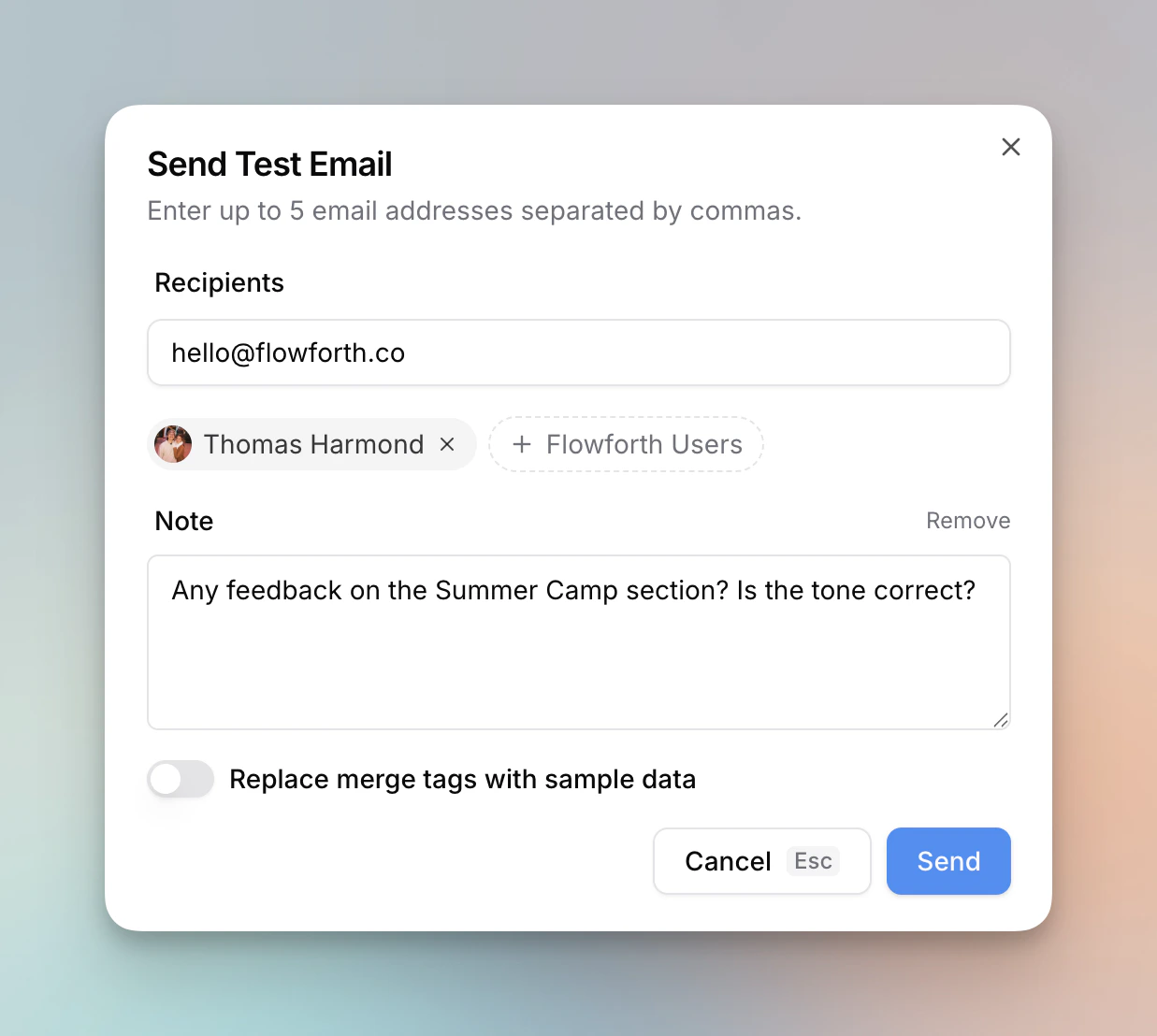 You can send a test email from two places:
* Click **Send Test** in the email editor toolbar
* Click **Send Test** on the email detail page
This opens the test email modal where you can configure your test.
***
## Adding Recipients
Enter up to **5 email addresses** separated by commas in the recipients field.
To quickly add team members, click **+ Flowforth Users** to browse and select members from your organization. This is useful when you want feedback from specific people without needing to remember their email addresses.
***
## Adding a Note
Click **Add a note** to include a message at the top of the test email. Notes are helpful for:
* Asking reviewers to check a specific section
* Providing context about what changed since the last test
* Requesting feedback on wording or design choices
The note appears as a banner at the top of the email and is only visible in the test, not in the final send.
***
## Merge Tag Preview
If your email contains merge tags, you can toggle **Replace merge tags with sample data** to see how they will render with real data instead of showing raw tag names like `{{first_name}}`.
This is useful for checking that your personalization looks natural and that tags are placed correctly.
***
## Good to Know
* **Test emails do not count** against your monthly send limit
* Test emails are sent immediately, regardless of any scheduled send time
* The email subject will be prefixed with **\[TEST]** so you can easily identify it in your inbox
* Email appearance may vary slightly across email clients (Gmail, Outlook, Apple Mail, etc.), so consider testing with recipients who use different clients
You can send a test email from two places:
* Click **Send Test** in the email editor toolbar
* Click **Send Test** on the email detail page
This opens the test email modal where you can configure your test.
***
## Adding Recipients
Enter up to **5 email addresses** separated by commas in the recipients field.
To quickly add team members, click **+ Flowforth Users** to browse and select members from your organization. This is useful when you want feedback from specific people without needing to remember their email addresses.
***
## Adding a Note
Click **Add a note** to include a message at the top of the test email. Notes are helpful for:
* Asking reviewers to check a specific section
* Providing context about what changed since the last test
* Requesting feedback on wording or design choices
The note appears as a banner at the top of the email and is only visible in the test, not in the final send.
***
## Merge Tag Preview
If your email contains merge tags, you can toggle **Replace merge tags with sample data** to see how they will render with real data instead of showing raw tag names like `{{first_name}}`.
This is useful for checking that your personalization looks natural and that tags are placed correctly.
***
## Good to Know
* **Test emails do not count** against your monthly send limit
* Test emails are sent immediately, regardless of any scheduled send time
* The email subject will be prefixed with **\[TEST]** so you can easily identify it in your inbox
* Email appearance may vary slightly across email clients (Gmail, Outlook, Apple Mail, etc.), so consider testing with recipients who use different clients