> ## Documentation Index
> Fetch the complete documentation index at: https://help.flowforth.co/llms.txt
> Use this file to discover all available pages before exploring further.
# Sharing Emails via Web Link
> Learn how to share your sent emails with a public web link.
After sending an email, you can share it with anyone using a public web link. This is useful for:
* Sharing your newsletter on social media
* Adding an archive link to your website
* Letting people who aren't on your list see what you sent
***
## How to Share an Email
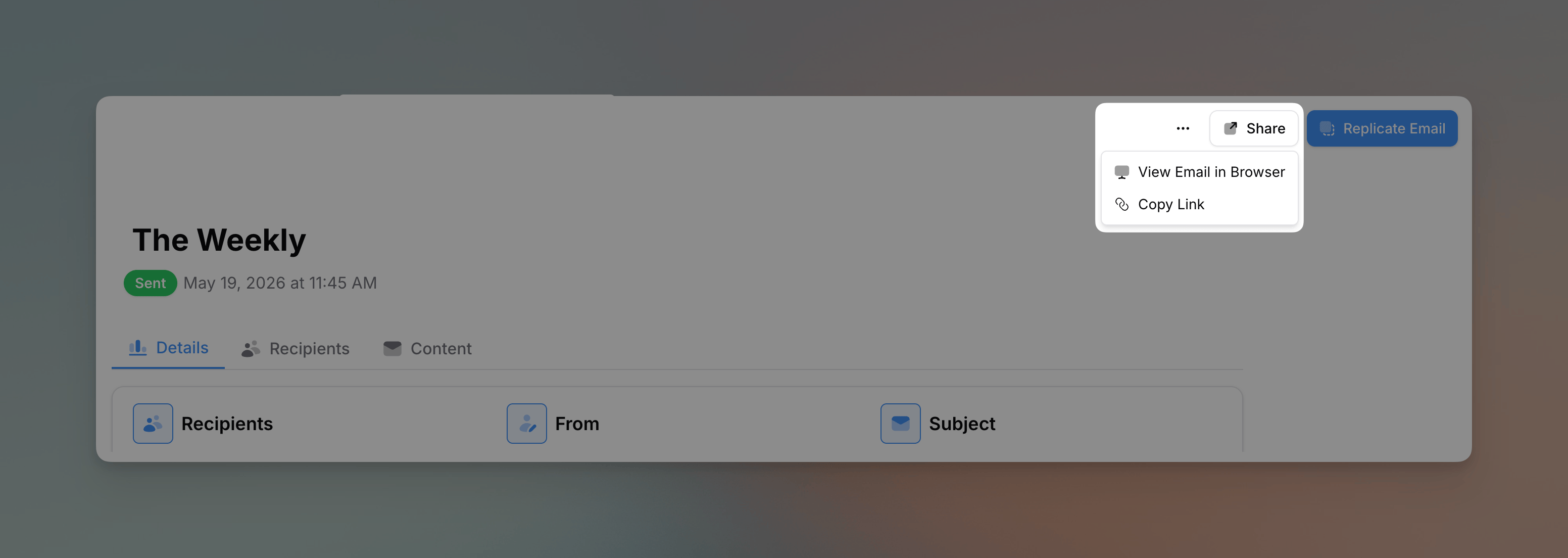 1. Go to **Emails** and click on a **sent email**
2. Click the **Share** button in the top right
3. Choose one of the options:
* **View Email in Browser** - Opens the email in a new tab
* **Copy Link** - Copies the shareable URL to your clipboard
Want to share an email before it goes out? You can make a draft or scheduled email viewable early by turning on **Visible before sent**. See [Sharing an Email Before It's Sent](/emails/sharing-before-send).
The email must be assigned to a category that has its [public page enabled](/emails/public-category-pages) in order to be shareable.
***
## What Recipients See
When someone visits the shared link, they see:
* The full email content as it was sent
* All images, links, and formatting
* A clean, web-optimized view
### What's Not Shown
* Recipient-specific merge tags (they see generic placeholders or are left blank)
* Tracking pixels
* Unsubscribe links (these are personalized per recipient)
***
## Link Format
Shared email links point to the email's page on your organization's [public category pages](/emails/public-category-pages):
```
https://yourchurch.flowforth.co/emails/your-category/your-email-id
```
If your organization has a custom website domain connected, the link uses that domain instead of the `flowforth.co` subdomain.
These links:
* Are permanent and don't expire
* Can be shared anywhere (social media, websites, etc.)
* Don't require login to view
***
## Use Cases
### Social Media
Share your weekly newsletter on Facebook, Instagram, or X (Twitter) so followers who aren't subscribed can see what they're missing.
### Website Archive
Create a "Past Newsletters" page on your church website with links to previous emails.
### Forwarding
Instead of forwarding an email (which can break formatting), send the web link so recipients see the email exactly as designed.
### Board or Staff Updates
Share email updates with board members or staff who may not be on the recipient list.
***
## Adding a "View in Browser" Link to Your Email
You can add a "View in Browser" link directly in your email using the `@view-in-browser` merge tag. This gives recipients a way to view the email in their browser if it's not displaying correctly in their email client.
1. Add a text block to your email (usually at the top)
2. Type something like: "Having trouble viewing this email? @view-in-browser"
3. The merge tag will be replaced with a clickable link when sent
***
If you have questions about sharing emails, reach out to [support@flowforth.co](mailto:support@flowforth.co).
1. Go to **Emails** and click on a **sent email**
2. Click the **Share** button in the top right
3. Choose one of the options:
* **View Email in Browser** - Opens the email in a new tab
* **Copy Link** - Copies the shareable URL to your clipboard
Want to share an email before it goes out? You can make a draft or scheduled email viewable early by turning on **Visible before sent**. See [Sharing an Email Before It's Sent](/emails/sharing-before-send).
The email must be assigned to a category that has its [public page enabled](/emails/public-category-pages) in order to be shareable.
***
## What Recipients See
When someone visits the shared link, they see:
* The full email content as it was sent
* All images, links, and formatting
* A clean, web-optimized view
### What's Not Shown
* Recipient-specific merge tags (they see generic placeholders or are left blank)
* Tracking pixels
* Unsubscribe links (these are personalized per recipient)
***
## Link Format
Shared email links point to the email's page on your organization's [public category pages](/emails/public-category-pages):
```
https://yourchurch.flowforth.co/emails/your-category/your-email-id
```
If your organization has a custom website domain connected, the link uses that domain instead of the `flowforth.co` subdomain.
These links:
* Are permanent and don't expire
* Can be shared anywhere (social media, websites, etc.)
* Don't require login to view
***
## Use Cases
### Social Media
Share your weekly newsletter on Facebook, Instagram, or X (Twitter) so followers who aren't subscribed can see what they're missing.
### Website Archive
Create a "Past Newsletters" page on your church website with links to previous emails.
### Forwarding
Instead of forwarding an email (which can break formatting), send the web link so recipients see the email exactly as designed.
### Board or Staff Updates
Share email updates with board members or staff who may not be on the recipient list.
***
## Adding a "View in Browser" Link to Your Email
You can add a "View in Browser" link directly in your email using the `@view-in-browser` merge tag. This gives recipients a way to view the email in their browser if it's not displaying correctly in their email client.
1. Add a text block to your email (usually at the top)
2. Type something like: "Having trouble viewing this email? @view-in-browser"
3. The merge tag will be replaced with a clickable link when sent
***
If you have questions about sharing emails, reach out to [support@flowforth.co](mailto:support@flowforth.co).