> ## Documentation Index
> Fetch the complete documentation index at: https://help.flowforth.co/llms.txt
> Use this file to discover all available pages before exploring further.
# Church Center Notifications
> Send a Church Center notification when you send an email, so your people see it in the Church Center app.
Church Center notifications let you send a notification to Church Center at the same time you send an email. When people see the notification in Church Center, they can tap a button to view the full email in their browser.
This is a great way to reach people who may not check their email regularly but are active in the Church Center app.
Flowforth calls this feature a **Church Center Notification**. In Planning
Center, the same feature is called a **Church Center Message** — it was
previously named **Church Center Announcements**. Whatever the label, it's the
same push notification your people receive in the Church Center app.
A Church Center **Notification** is a push notification sent to the people on
your email's list. It's different from a [Publishing
Announcement](/emails/publishing-announcements), which posts an item to your
Church Center announcements feed through Planning Center Publishing. You can use
either, both, or neither on any email.
You can also send a Church Center notification as a step inside an automation, so it goes out automatically on your trigger or schedule. See [Send Church Center Notification](/automations/builder/church-center-notification) in the Automations guide.
***
## How It Works
When you enable a Church Center notification on an email:
1. You send (or schedule) your email as usual
2. After the email is sent, Flowforth automatically sends a Church Center notification to everyone on the list the email is sent to.
3. The notification appears in Church Center for everyone on the list the email is sent to.
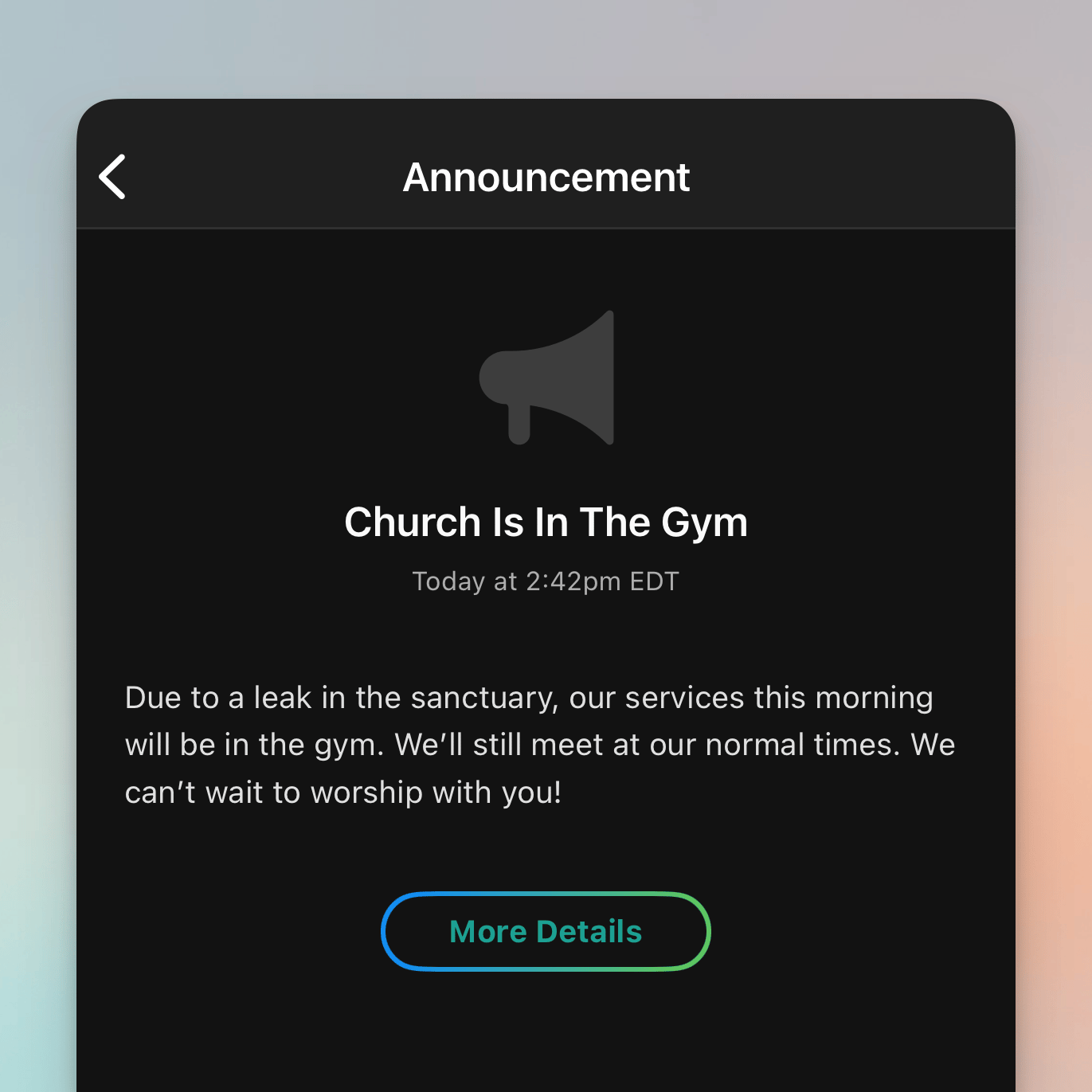
4. Recipients can tap the button in the notification to view the full email in their browser
***
## Setting Up a Church Center Notification
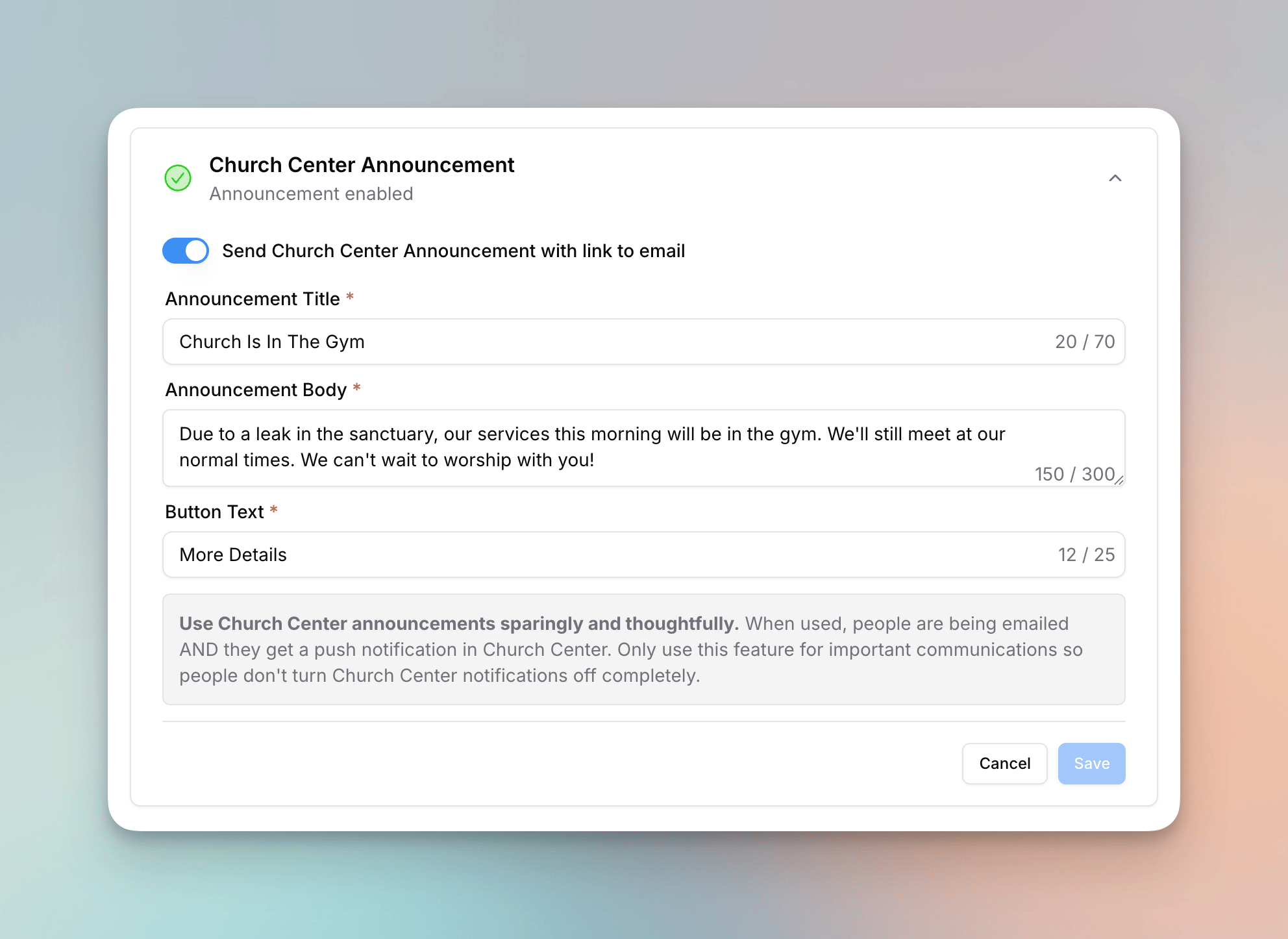 1. Go to your email's detail page (the pre-send checklist)
2. Open the **Church Center** section
3. Toggle on **Send Church Center Notification**
4. Fill in the required fields:
* **Title** — The headline of the notification (up to 70 characters)
* **Body** — A short description or preview (up to 300 characters)
* **Button Text** — The label on the call-to-action button (up to 25 characters)
5. Click **Save**
The notification will be sent to the same Planning Center list you selected in the **To** section.
***
## What Recipients See
When the notification is sent, recipients receive a **push notification** on their device with the title and body you entered.
1. Go to your email's detail page (the pre-send checklist)
2. Open the **Church Center** section
3. Toggle on **Send Church Center Notification**
4. Fill in the required fields:
* **Title** — The headline of the notification (up to 70 characters)
* **Body** — A short description or preview (up to 300 characters)
* **Button Text** — The label on the call-to-action button (up to 25 characters)
5. Click **Save**
The notification will be sent to the same Planning Center list you selected in the **To** section.
***
## What Recipients See
When the notification is sent, recipients receive a **push notification** on their device with the title and body you entered.
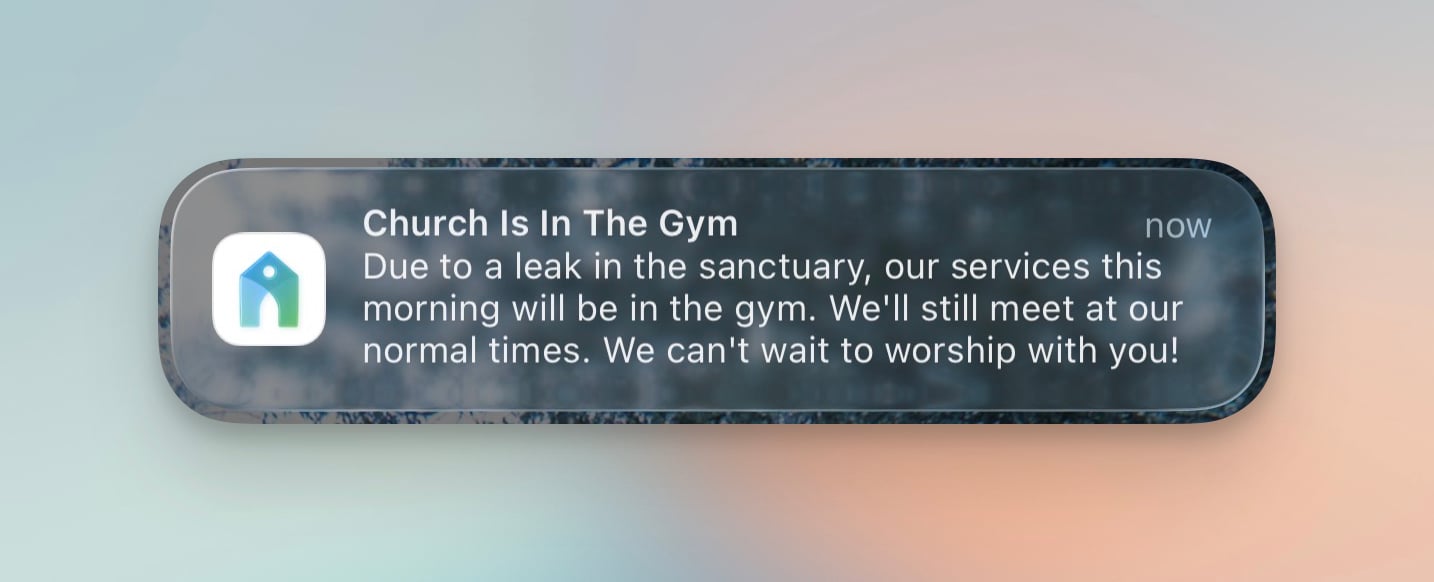 Tapping the notification opens it in the Church Center app, where they can tap the button to view the email in their browser.
 ***
## The Public Email Link
When a Church Center notification is sent, Flowforth creates a public web link to the email so recipients can view it in their browser. This link is built using your content domain and the email's category slug.
Church Center notifications require a public email category. If your category
is not set to public, you won't be able to enable a Church Center
notification. Update the category's public settings first.
To set up a content domain, see [Setting Up Your Content Domain](/domains/content-domain).
***
## Permissions
Church Center notifications are available to **owners** and **members** who meet all of the following:
* Have the **Emails** permission with the **Manager** level (not Designer)
* Have the **Church Center notifications** permission enabled
Designers and members without the Church Center permission can still see an existing notification on the pre-send page, but they cannot create or edit one.
Owners can grant the Church Center notifications permission from the **Members** settings page when editing a member's permissions. See [Roles and Permissions](/organization/roles-and-permissions) for details.
***
## Requirements
* Your email must be sending to a **single Planning Center list** — Church Center notifications are not available when sending to multiple lists or to individual people
* Your organization must have a **connected Planning Center account**
* You need a **content domain or subdomain** set up for the public email link
* Your email must have a **category** assigned so the link can be generated
***
## Replicating Emails with Church Center Notifications
When you [replicate an email](/emails/duplicate-and-replicate-emails) that has a Church Center notification configured, the notification settings (enabled/disabled, title, body, and button text) are automatically copied to the new email.
***
## Common Use Cases
### Major Events
Use a Church Center notification for big events like Easter services, VBS registration, or a church-wide gathering to make sure it reaches people on both channels.
### Time-Sensitive Updates
For urgent messages like cancellations, schedule changes, or severe weather closures, the push notification ensures people see the update quickly.
***
If you have questions about Church Center notifications, reach out to [support@flowforth.co](mailto:support@flowforth.co).
***
## The Public Email Link
When a Church Center notification is sent, Flowforth creates a public web link to the email so recipients can view it in their browser. This link is built using your content domain and the email's category slug.
Church Center notifications require a public email category. If your category
is not set to public, you won't be able to enable a Church Center
notification. Update the category's public settings first.
To set up a content domain, see [Setting Up Your Content Domain](/domains/content-domain).
***
## Permissions
Church Center notifications are available to **owners** and **members** who meet all of the following:
* Have the **Emails** permission with the **Manager** level (not Designer)
* Have the **Church Center notifications** permission enabled
Designers and members without the Church Center permission can still see an existing notification on the pre-send page, but they cannot create or edit one.
Owners can grant the Church Center notifications permission from the **Members** settings page when editing a member's permissions. See [Roles and Permissions](/organization/roles-and-permissions) for details.
***
## Requirements
* Your email must be sending to a **single Planning Center list** — Church Center notifications are not available when sending to multiple lists or to individual people
* Your organization must have a **connected Planning Center account**
* You need a **content domain or subdomain** set up for the public email link
* Your email must have a **category** assigned so the link can be generated
***
## Replicating Emails with Church Center Notifications
When you [replicate an email](/emails/duplicate-and-replicate-emails) that has a Church Center notification configured, the notification settings (enabled/disabled, title, body, and button text) are automatically copied to the new email.
***
## Common Use Cases
### Major Events
Use a Church Center notification for big events like Easter services, VBS registration, or a church-wide gathering to make sure it reaches people on both channels.
### Time-Sensitive Updates
For urgent messages like cancellations, schedule changes, or severe weather closures, the push notification ensures people see the update quickly.
***
If you have questions about Church Center notifications, reach out to [support@flowforth.co](mailto:support@flowforth.co).