> ## Documentation Index
> Fetch the complete documentation index at: https://help.flowforth.co/llms.txt
> Use this file to discover all available pages before exploring further.
# Canva Emails
> Create emails from your Canva Email templates with automatic HTML import, image processing, and merge tag conversion.
Canva Emails let you design your email in Canva's visual editor and then import it into Flowforth as a ready-to-send email. Flowforth handles extracting the HTML, uploading images, and converting Canva's template placeholders into Flowforth merge tags.
***
## Creating a Canva Email
1. Go to **Emails** and click **New Email**.
2. Select **Canva** as the email type.
3. Enter an internal **name** for your email and optionally choose a **folder**.
4. Click **Create** to open the Canva design browser.
5. Browse or search for the Canva Email template you want to use.
6. Click the design to start the import.
Flowforth will process the design in the background. Once complete, you'll be automatically taken to the email editor where you can review and make any final changes.
You must have a **Canva account connected** to create Canva emails. If you haven't connected yet, go to **Settings > Integrations > Canva** to set up the connection. See [Canva Integration](/integrations/canva) for details.
***
## What Gets Imported
When Flowforth processes your Canva Email template, it imports:
* The full **HTML layout** of the email
* All **images** used in the design, uploaded to your Flowforth asset library
* **Links** and formatting from the original design
### Setting Up Email Links in Canva
Before importing your design, use Canva's built-in **Email links** to add unsubscribe, update preferences, and view in browser links to your template. When adding a link to any element in Canva, you'll see these options under the **Email links** section.
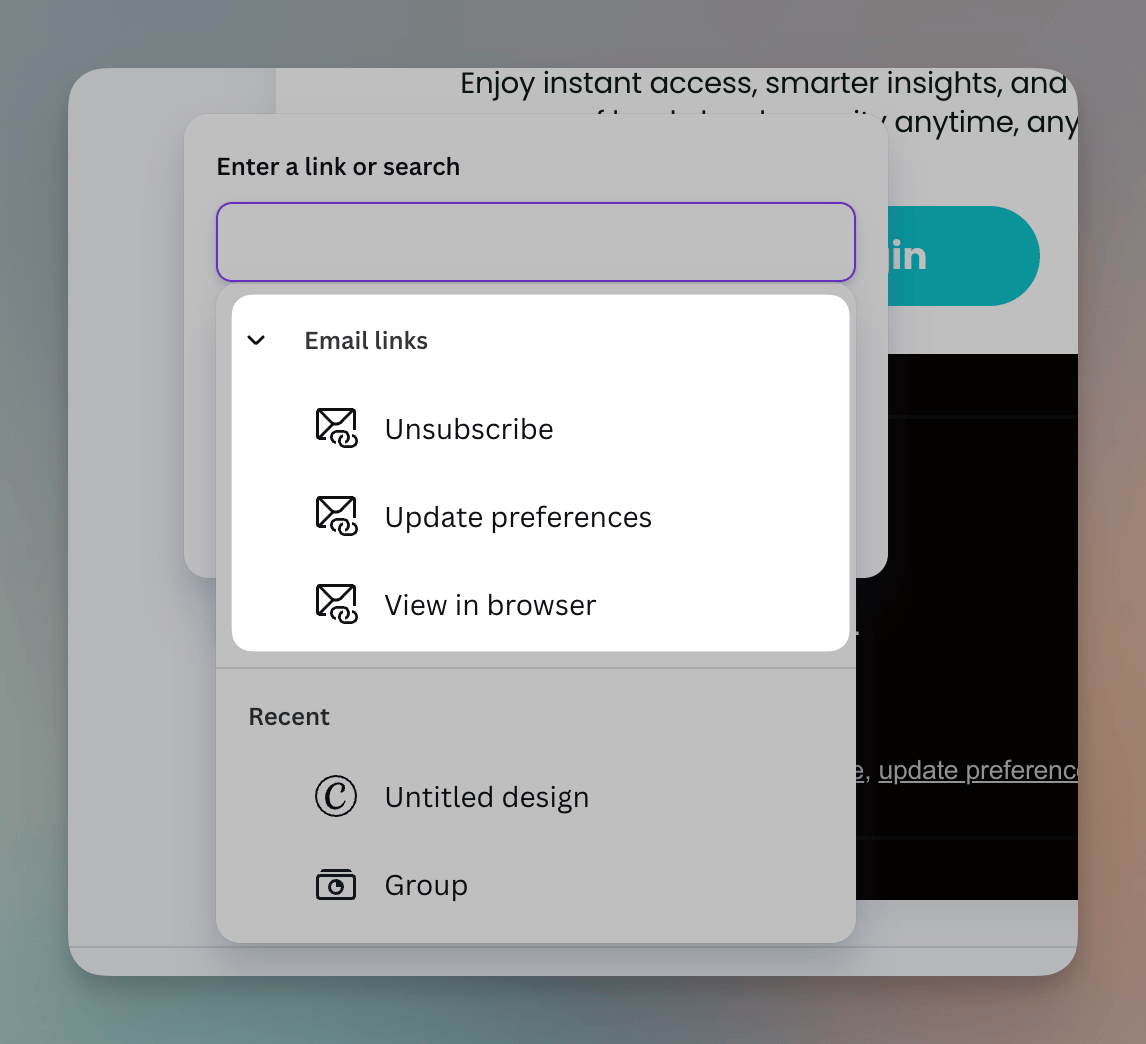 When Flowforth imports your design, these links are automatically converted to the corresponding merge tags:
| Canva Email Link | Flowforth Merge Tag |
| ------------------ | --------------------- |
| Unsubscribe | `@unsubscribe` |
| Update preferences | `@manage-preferences` |
| View in browser | `@view-in-browser` |
This means your imported email is ready to send with working unsubscribe and preference management links, no manual editing needed.
An unsubscribe link is required on all emails. If your design doesn't include one, Flowforth will automatically add a plain-text unsubscribe link to the bottom of your email when it's sent.
***
## Creating an Email Design in Canva
Only designs created using Canva's **Email** template type can be imported as Canva emails. If you select a design that is not an Email template, you'll see an error message letting you know.
To create an Email design in Canva:
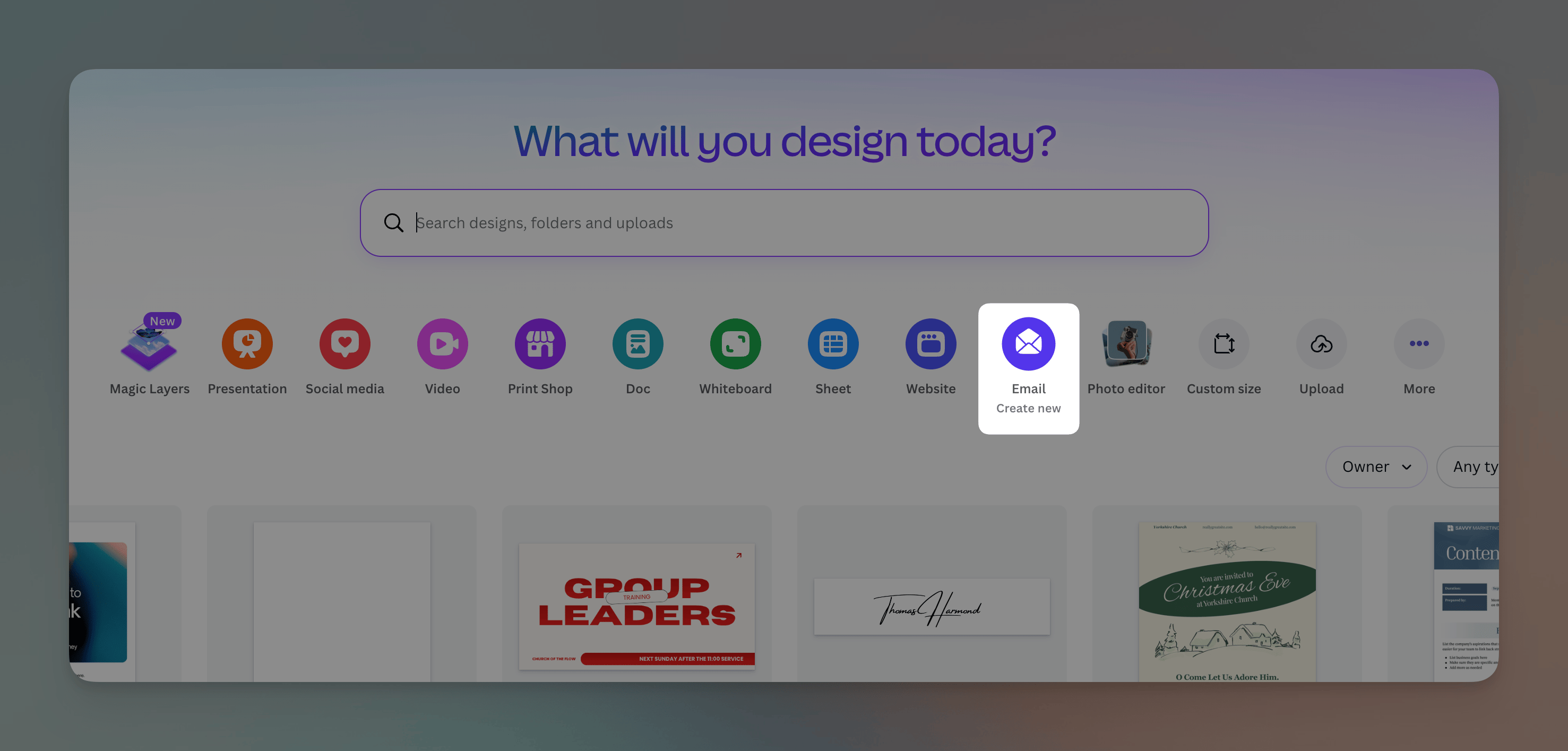
1. From the Canva homepage, click the **Email** icon in the design type row.
When Flowforth imports your design, these links are automatically converted to the corresponding merge tags:
| Canva Email Link | Flowforth Merge Tag |
| ------------------ | --------------------- |
| Unsubscribe | `@unsubscribe` |
| Update preferences | `@manage-preferences` |
| View in browser | `@view-in-browser` |
This means your imported email is ready to send with working unsubscribe and preference management links, no manual editing needed.
An unsubscribe link is required on all emails. If your design doesn't include one, Flowforth will automatically add a plain-text unsubscribe link to the bottom of your email when it's sent.
***
## Creating an Email Design in Canva
Only designs created using Canva's **Email** template type can be imported as Canva emails. If you select a design that is not an Email template, you'll see an error message letting you know.
To create an Email design in Canva:
1. From the Canva homepage, click the **Email** icon in the design type row.
 2. Or click the **Create** button in the sidebar, then select **Emails**.
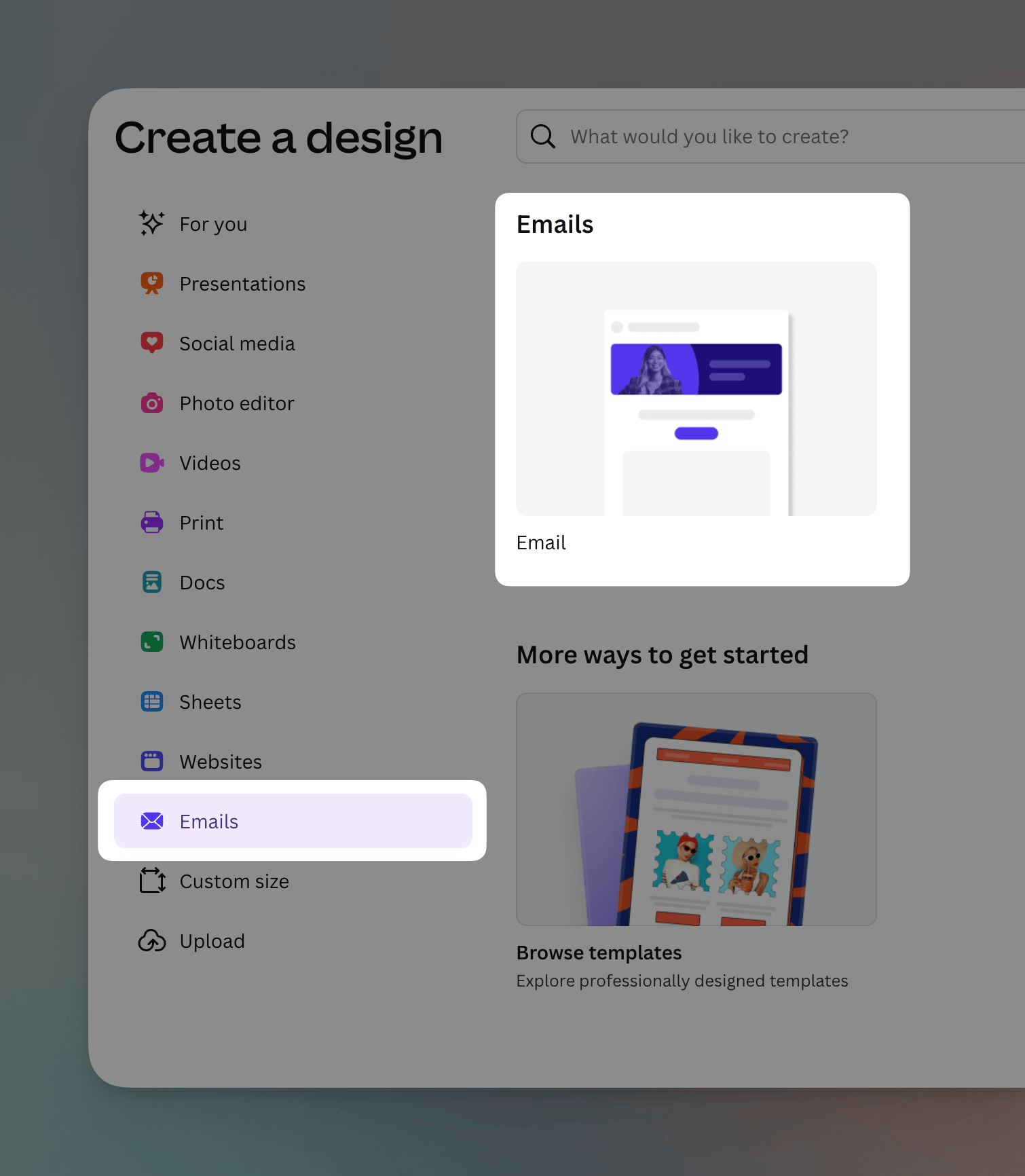 From there, you can start from a blank email or browse Canva's email templates.
Other Canva design types (social media posts, presentations, flyers, etc.) can still be used in Flowforth by importing them as images through the [asset browser](/integrations/canva#1-import-a-design-as-an-image) in the drag-and-drop editor.
***
## Editing a Canva Email
Canva emails are HTML-based, so they open in the [HTML editor](/emails/html-emails). You can make changes to the HTML directly, use merge tags, and access your asset library, just like any other HTML email.
***
## Tips
* **Design in Canva, send in Flowforth.** Use Canva's visual tools to design your email, then import it into Flowforth to handle recipients, scheduling, metrics, and delivery.
* **Update your design.** If you make changes to your Canva design after importing, you can create a new Canva email from the updated design.
* **Test before sending.** Always send a test email after importing to make sure everything looks right across different email clients.
***
Need help with Canva emails? Contact [support@flowforth.co](mailto:support@flowforth.co).
From there, you can start from a blank email or browse Canva's email templates.
Other Canva design types (social media posts, presentations, flyers, etc.) can still be used in Flowforth by importing them as images through the [asset browser](/integrations/canva#1-import-a-design-as-an-image) in the drag-and-drop editor.
***
## Editing a Canva Email
Canva emails are HTML-based, so they open in the [HTML editor](/emails/html-emails). You can make changes to the HTML directly, use merge tags, and access your asset library, just like any other HTML email.
***
## Tips
* **Design in Canva, send in Flowforth.** Use Canva's visual tools to design your email, then import it into Flowforth to handle recipients, scheduling, metrics, and delivery.
* **Update your design.** If you make changes to your Canva design after importing, you can create a new Canva email from the updated design.
* **Test before sending.** Always send a test email after importing to make sure everything looks right across different email clients.
***
Need help with Canva emails? Contact [support@flowforth.co](mailto:support@flowforth.co).