> ## Documentation Index
> Fetch the complete documentation index at: https://help.flowforth.co/llms.txt
> Use this file to discover all available pages before exploring further.
# The Automation Builder
> Build your automation by dragging steps from the sidebar onto a visual canvas — add, edit, reorder, duplicate, and remove steps.
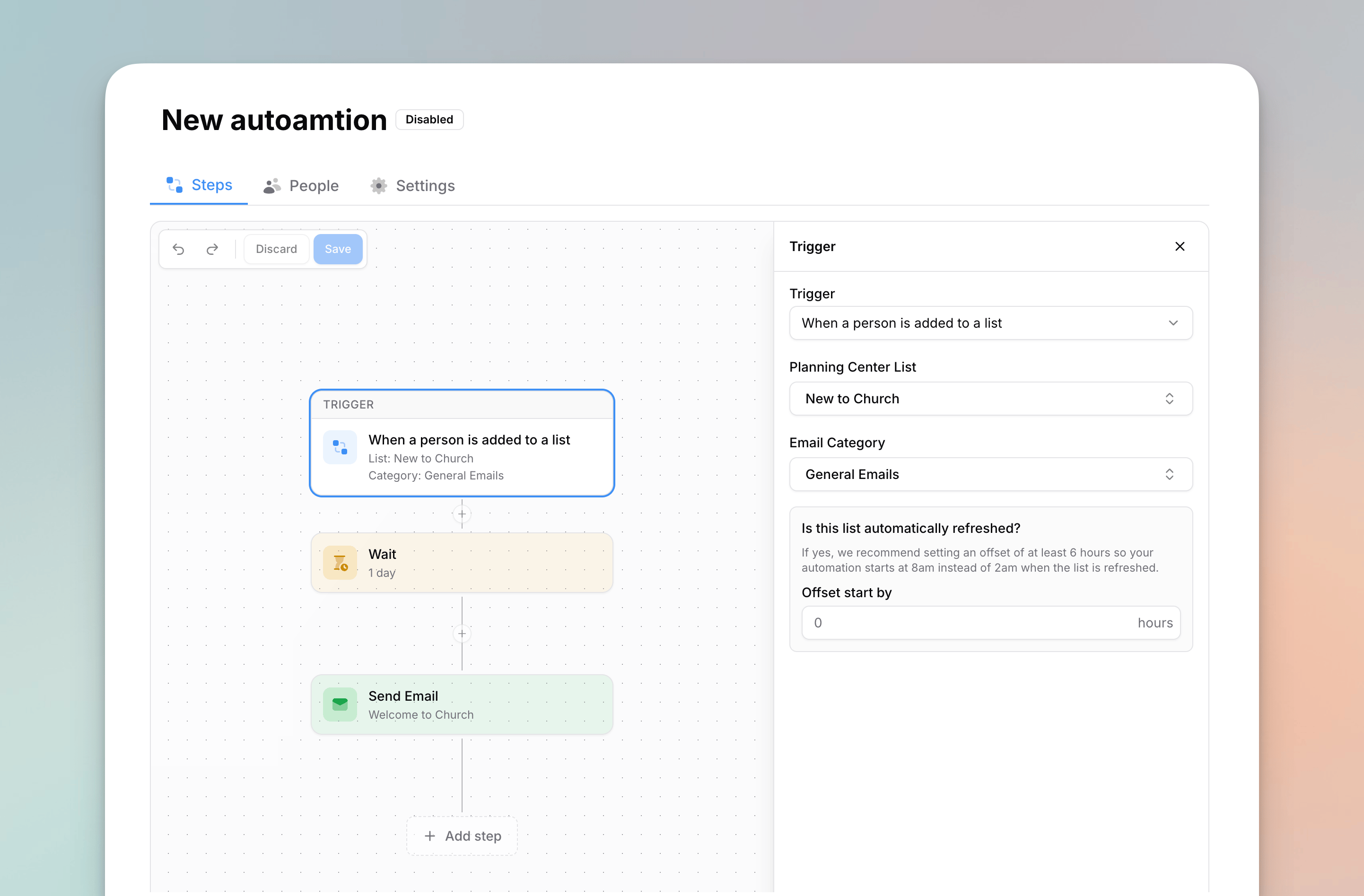
The automation builder is where you decide what happens once someone enters your automation. A **sidebar** on the left holds your **trigger** and a palette of **steps** you can drag onto the canvas. On the canvas, the trigger sits at the top and your steps follow in order. If you add an [If / Else](/automations/builder/if-else) condition, the canvas splits into two paths you can build independently.
 ***
## Working with Steps
* **Add a step** — drag it from the **Steps** palette in the sidebar and drop it on the canvas where it should run. Every spot that can accept the step lights up while you drag. You can also click **Add step** at the bottom of a path, or the **+** button on the line between two steps. You can add up to **100 steps**.
* **Edit a step** — click a step and its settings slide over the sidebar. Click **Back** to return to the palette.
* **Reorder a step** — open the step and use the **up/down arrows** at the top of its settings. Steps move within their own path.
* **Duplicate a step** — click the **duplicate** button at the top of the step's settings; the copy is inserted right after the original on the same path.
* **Remove a step** — open the step and click the **trash icon** at the top of its settings.
***
## Step Types
| Step | What it does |
| -------------------------------------------------------------------------------------- | ----------------------------------------------------- |
| [**Wait**](/automations/builder/wait) | Pause before the next step runs |
| [**Wait Until on List**](/automations/builder/wait-until) | Hold a person until they're on a Planning Center list |
| [**Send Email**](/automations/builder/send-email) | Send an email from a template |
| [**Send Church Center Notification**](/automations/builder/church-center-notification) | Push a notification to the Church Center app |
| [**If / Else**](/automations/builder/if-else) | Branch into two paths based on list membership |
| [**End Automation**](/automations/builder/end-automation) | Stop the run for anyone who reaches it |
***
## Step Rules
A few rules keep automations valid:
* You **cannot end** an automation (or a path) with a **wait** — though a path may end with one when it rejoins into more steps afterwards.
* You **cannot place two waits** back-to-back.
* A duration wait can be **at most 31 days** (*until a day of the week* waits are at most a week by definition).
* You **cannot place two [Wait Until on List](/automations/builder/wait-until) steps** back-to-back (a regular wait next to a Wait Until on List is fine).
* **End Automation** steps are always the **last step of their path** — nothing can come after them.
* Weekly and monthly ([scheduled](/automations/triggers/scheduled)) triggers are limited to a **single email step** and a **single Church Center notification step** — no wait, Wait Until on List, If / Else, or End Automation steps.
An automation must have at least **one email step** or **one Church Center notification step** to be enabled.
***
## Working with Steps
* **Add a step** — drag it from the **Steps** palette in the sidebar and drop it on the canvas where it should run. Every spot that can accept the step lights up while you drag. You can also click **Add step** at the bottom of a path, or the **+** button on the line between two steps. You can add up to **100 steps**.
* **Edit a step** — click a step and its settings slide over the sidebar. Click **Back** to return to the palette.
* **Reorder a step** — open the step and use the **up/down arrows** at the top of its settings. Steps move within their own path.
* **Duplicate a step** — click the **duplicate** button at the top of the step's settings; the copy is inserted right after the original on the same path.
* **Remove a step** — open the step and click the **trash icon** at the top of its settings.
***
## Step Types
| Step | What it does |
| -------------------------------------------------------------------------------------- | ----------------------------------------------------- |
| [**Wait**](/automations/builder/wait) | Pause before the next step runs |
| [**Wait Until on List**](/automations/builder/wait-until) | Hold a person until they're on a Planning Center list |
| [**Send Email**](/automations/builder/send-email) | Send an email from a template |
| [**Send Church Center Notification**](/automations/builder/church-center-notification) | Push a notification to the Church Center app |
| [**If / Else**](/automations/builder/if-else) | Branch into two paths based on list membership |
| [**End Automation**](/automations/builder/end-automation) | Stop the run for anyone who reaches it |
***
## Step Rules
A few rules keep automations valid:
* You **cannot end** an automation (or a path) with a **wait** — though a path may end with one when it rejoins into more steps afterwards.
* You **cannot place two waits** back-to-back.
* A duration wait can be **at most 31 days** (*until a day of the week* waits are at most a week by definition).
* You **cannot place two [Wait Until on List](/automations/builder/wait-until) steps** back-to-back (a regular wait next to a Wait Until on List is fine).
* **End Automation** steps are always the **last step of their path** — nothing can come after them.
* Weekly and monthly ([scheduled](/automations/triggers/scheduled)) triggers are limited to a **single email step** and a **single Church Center notification step** — no wait, Wait Until on List, If / Else, or End Automation steps.
An automation must have at least **one email step** or **one Church Center notification step** to be enabled.